

Mini apps
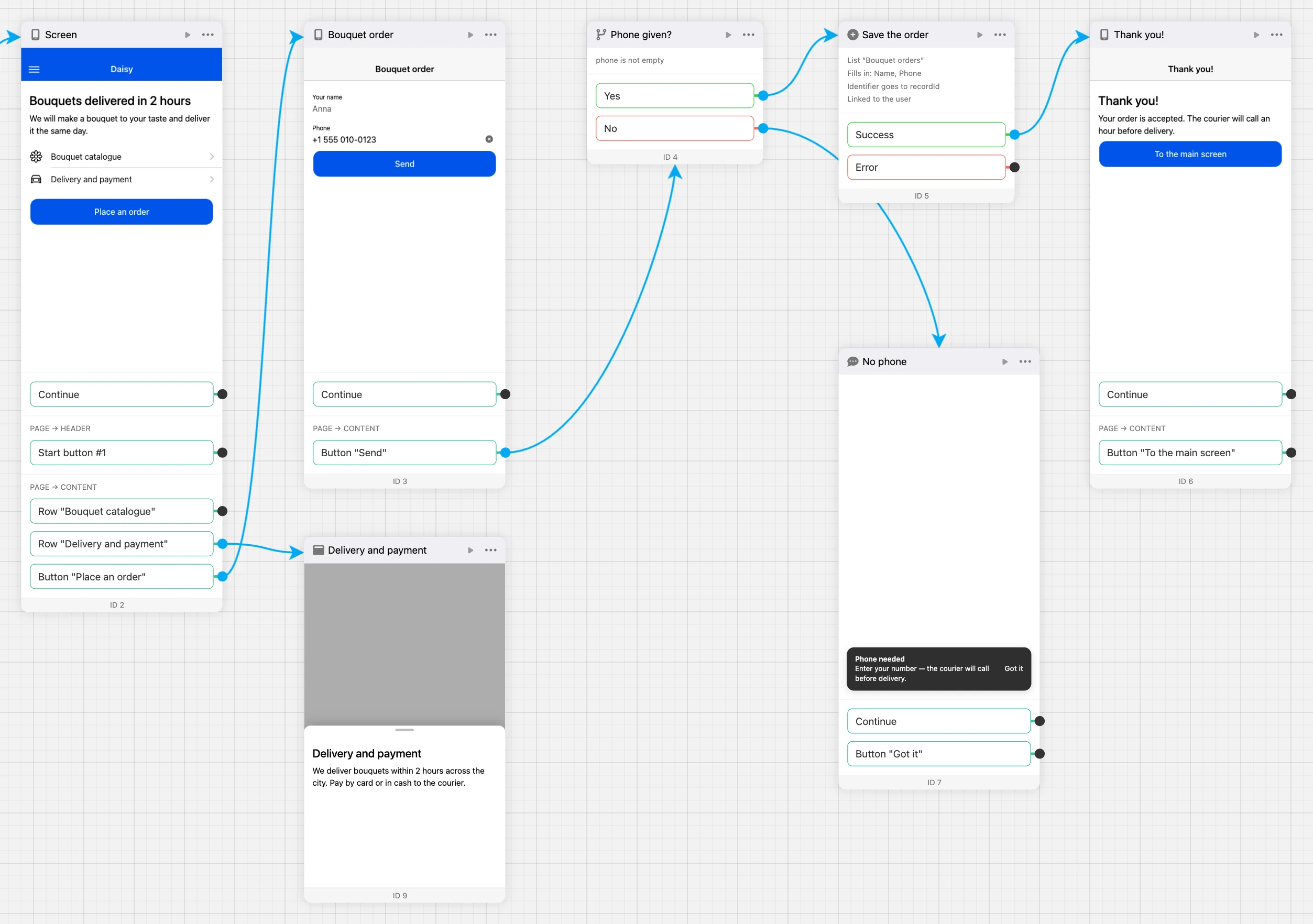
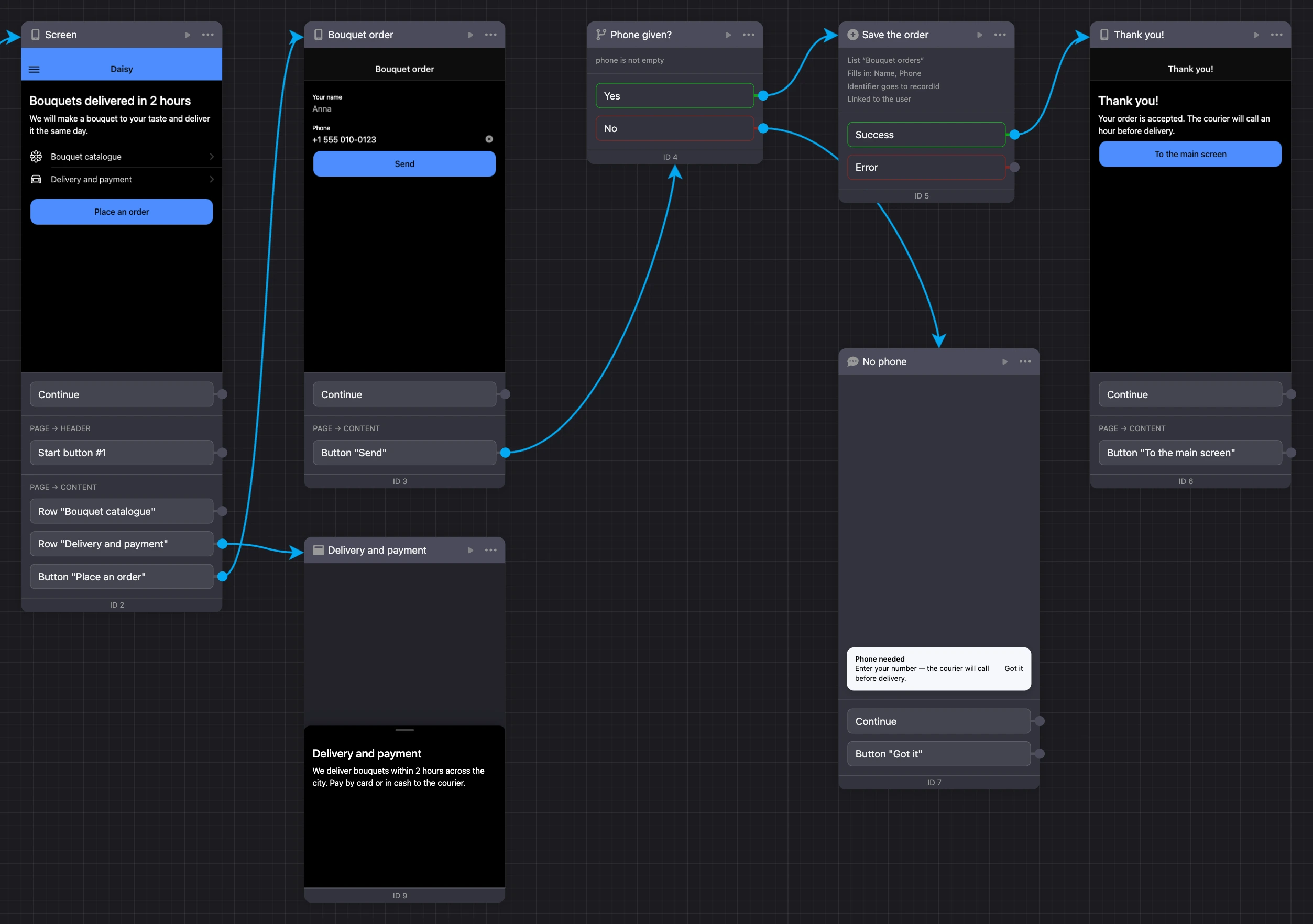
A mini app is a set of screens with text, images, buttons, input fields and lists. A person opens it with a button in the chat with the bot or via a link and uses it like a regular phone app: flips through screens, fills in forms, picks items from a list.
You build an app in the builder without programming: you place screens and blocks on the scheme and connect them with links. The app stores its data — requests, catalogues, questionnaires — in the project's lists, the same ones the chatbots work with.
Where the app opens
| Where | How to open it | Who is in front of you |
|---|---|---|
| Telegram | With a bot button. The app opens inside the messenger | The person is identified: the app knows their name and links them to the bot's contact |
| MAX | With a bot button. The app opens inside the messenger | The person is identified |
| Website chat | With a bot button in the chat. The app opens over the chat | A website chat contact |
| Browser | Via the app link | A guest: they have no name and no bot contact |
| Phone screen | The app the person added to the home screen from the browser | A guest |
In VK and Viber the app does not open inside the messenger: its link opens in the browser.
You can find out where the app was opened from right in the scenario — with the "Launch source" block — and show different screens to different people. See the Launch source page for details.
Where mini apps live
Apps belong to the project. The list opens with the "Mini apps" item in the project's menu. A click on an app opens its sections — they are listed in the side menu:
| Section | What it contains |
|---|---|
| "Builder" | The app's scheme: screens, blocks and links, preview, versions and publishing |
| "Users" | Who opened the app and from where, each person's variables and tags |
| "Analytics" | Opens, visitors and popular screens by day |
| "Error log" | Requests and code that failed |
| "Settings" | Name, bots, icon, app link |
The app's name at the top of the side menu is a switcher: use it to go to another app of the project, create a new one and change the icon.


What you need
- A Pro subscription. You can create apps, open the builder and publish versions only with a subscription. Without it, the Pro checkout window opens instead of the action. See the What is available without Pro page for details.
- A chatbot — to open the app in a messenger and in a website chat. The bot is connected in the app's settings: in Telegram, MAX and the website chat, the app opens only from a connected bot. A link in the browser does not need a bot.
- Team member permissions. The project owner can do everything. A team member's permissions are set in their role — in the "Mini apps" block:
| Permission group | Permissions | What they give |
|---|---|---|
| "Administration" | "Creating a mini app", "Editing a mini app", "Deleting a mini app" | Create an app; rename it, change its settings, icon and position in the list; delete it |
| "Building" | "Building a mini app" | Open the builder, users, analytics and the error log |
How to give a team member access is covered on the Team member access page.
How it works
- Create an app — blank or from a template.
- Build screens in the builder: add elements, connect buttons to other screens and blocks.
- Check the app in the preview — right on the scheme.
- Publish a version, connect the bot and put the app link into a bot button.
- Keep an eye on visitors, analytics and errors.
You can also build an app in the AI chat by describing it in words — see the Building an app in the AI chat page.
Limits
- A project can have no more than 100 mini apps. When the limit is reached, the "Create" button is disabled.
- You can create no more than 20 apps per day.
- An app can have no more than 50 versions.
- One version can have no more than 10,000 blocks, and its size is no more than 50 MB.
- No more than 20 bots can be connected to an app.
Pages of this section
- Creating an app — the list of apps, creating from scratch and from a template, your own template.
- Builder — the scheme and links, the screen editor, windows and tabs, colours and the dark theme, preview and debugging.
- Screen elements — a reference of elements: text and media, input fields, lists, countdown, map and more.
- Blocks and actions — what a button can do and a block reference: screens and windows, requests, conditions, lists, chatbot, shop, appointments.
- Building an app in the AI chat — the AI builds and fixes the app from a description, in a draft.
- App data — variables and templates, lists and forms, tags, conditions.
- Versions and publishing — versions, publishing, connecting a bot, the app link and the button in the bot.
- Users, analytics and error log — guests and identified users, the user card, statistics, errors.
- Code in the app — for developers: the "JavaScript" block, app code, the HTML element and the HTML screen.