

Order payment
The shop accepts payment in two ways: online — by card or via SBP — and on delivery. Both are set up in the shop, in "Settings" → "Payments". If both are on, the customer chooses the method at checkout. If neither is on, the order is placed without a payment method.
Online payment
Payment systems are connected not in the shop but in the project: one account can be chosen in several shops of the project. The money goes straight to your account in the payment system.
- Open the project settings, the "Accepting payments" tab, and connect a payment system. Only the project owner can do this. Which systems are available and how to connect them is covered in the Accepting payments section.
- Open the shop, "Settings" → "Payments".
- In the "Online payment" field, choose the connected system.
- Set the "Hours to wait for payment": from 1 to 168, 24 by default.
- Click "Save".
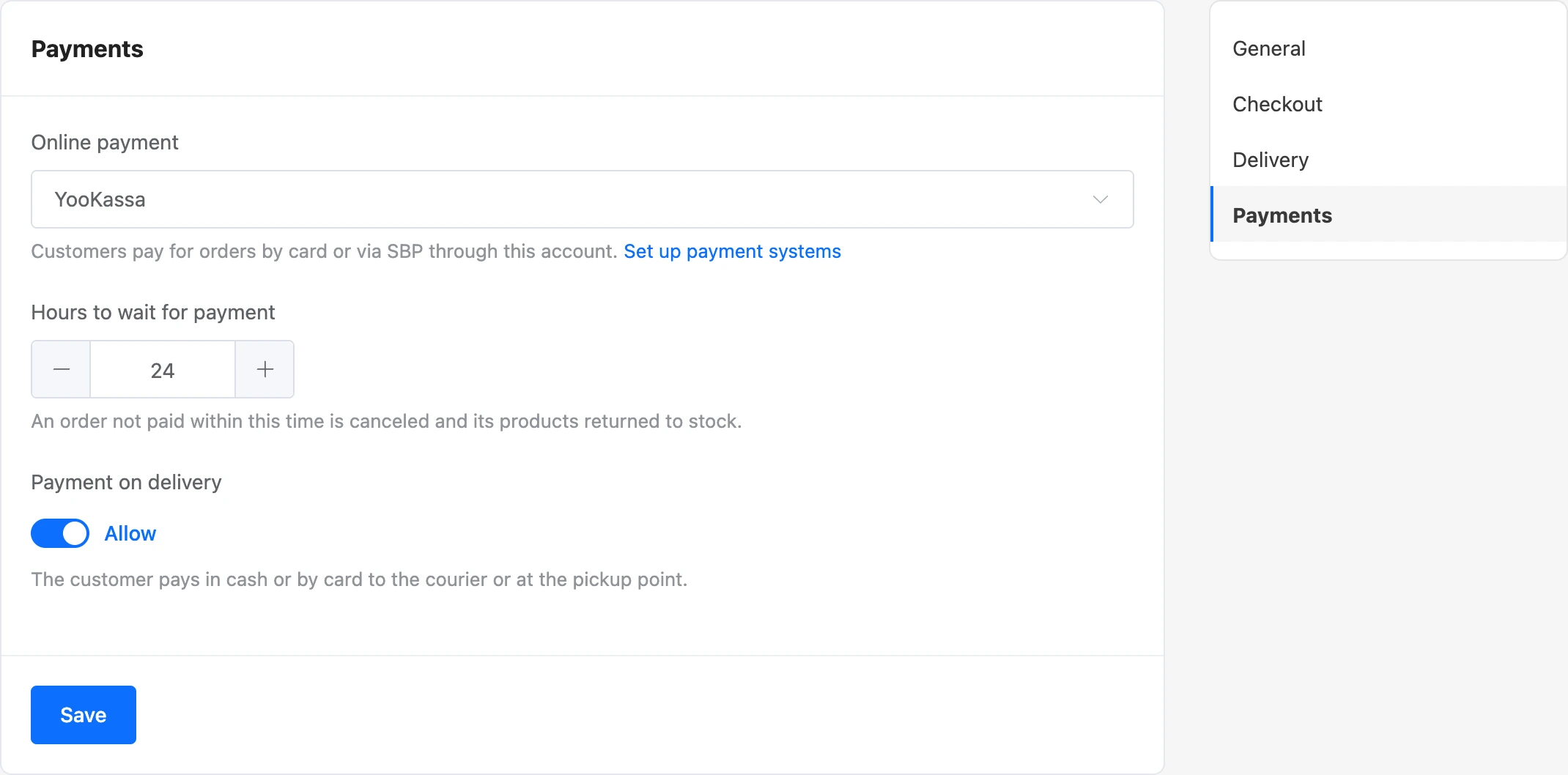
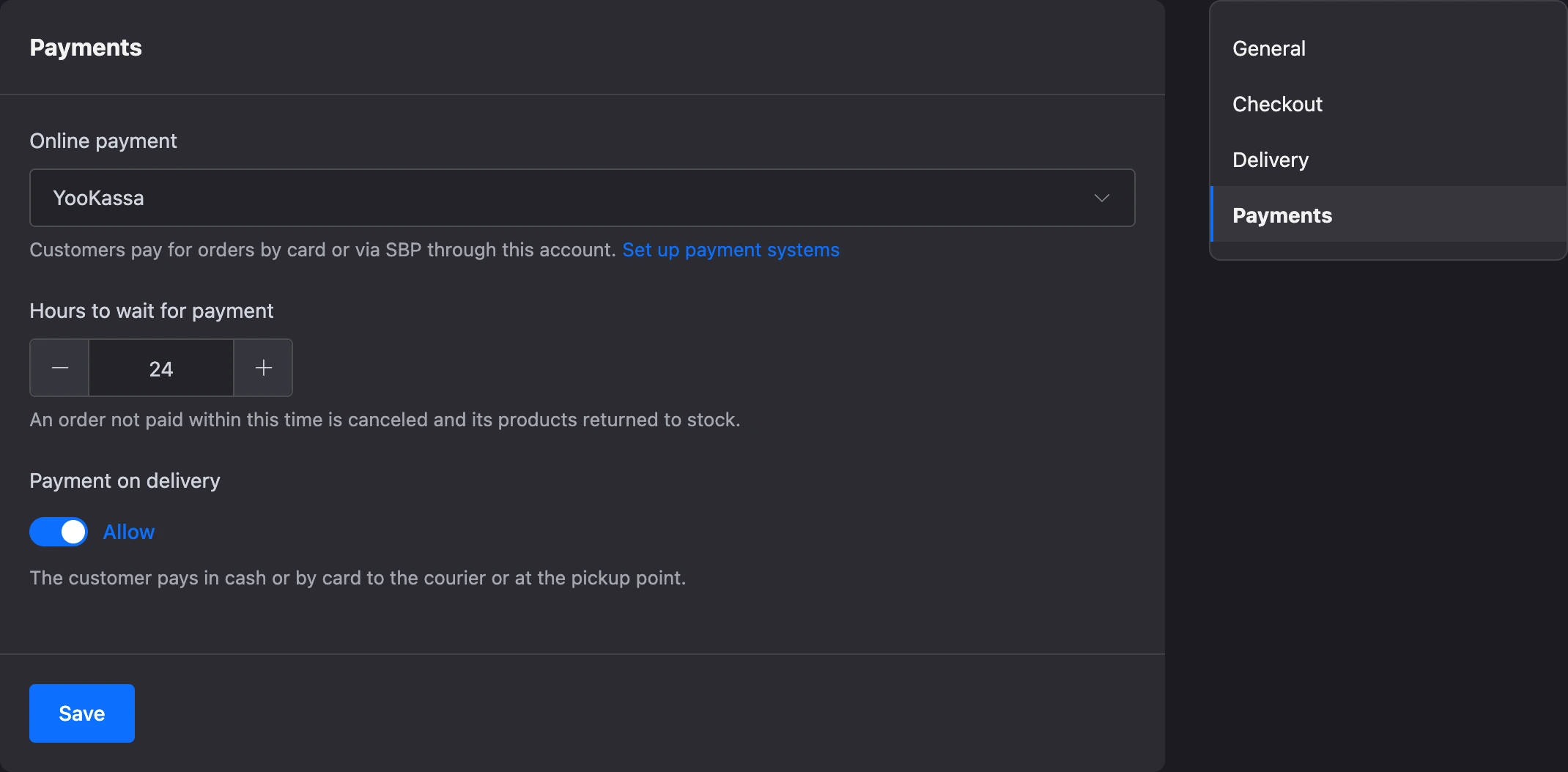
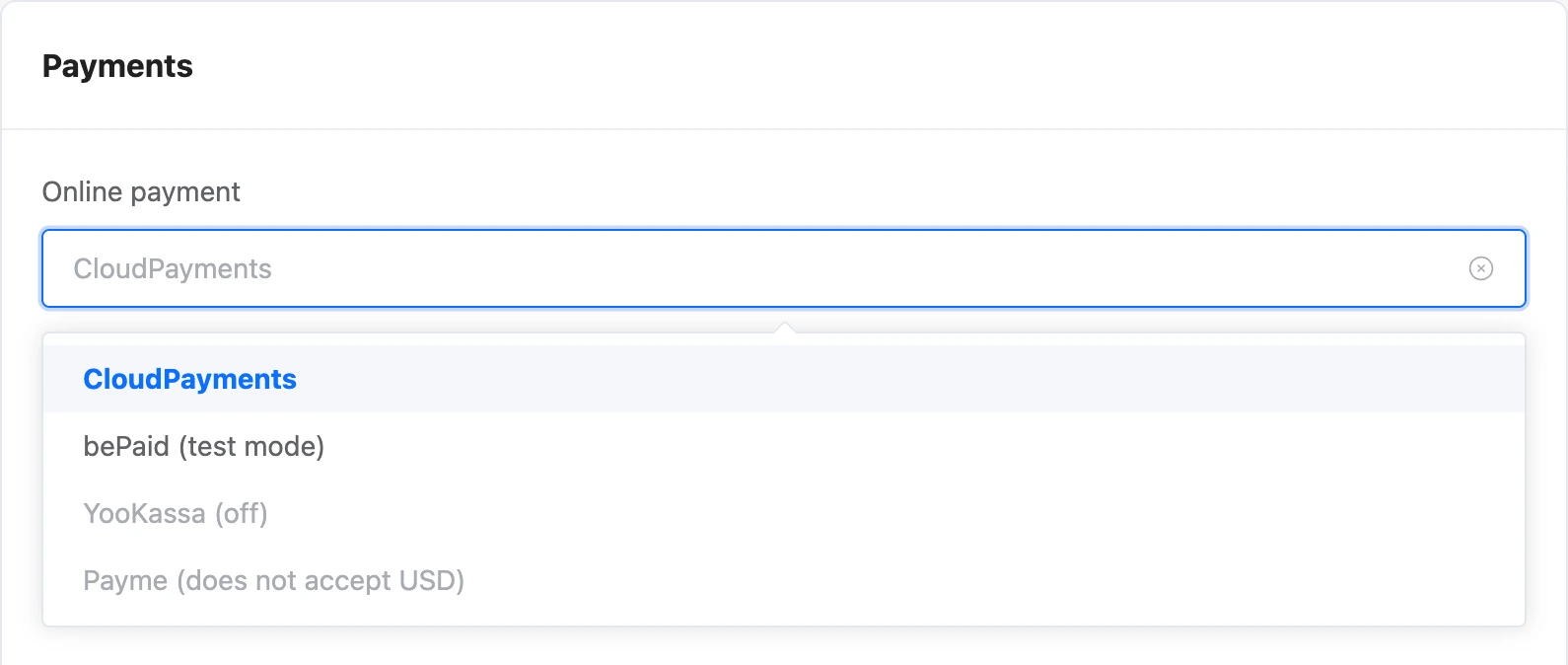
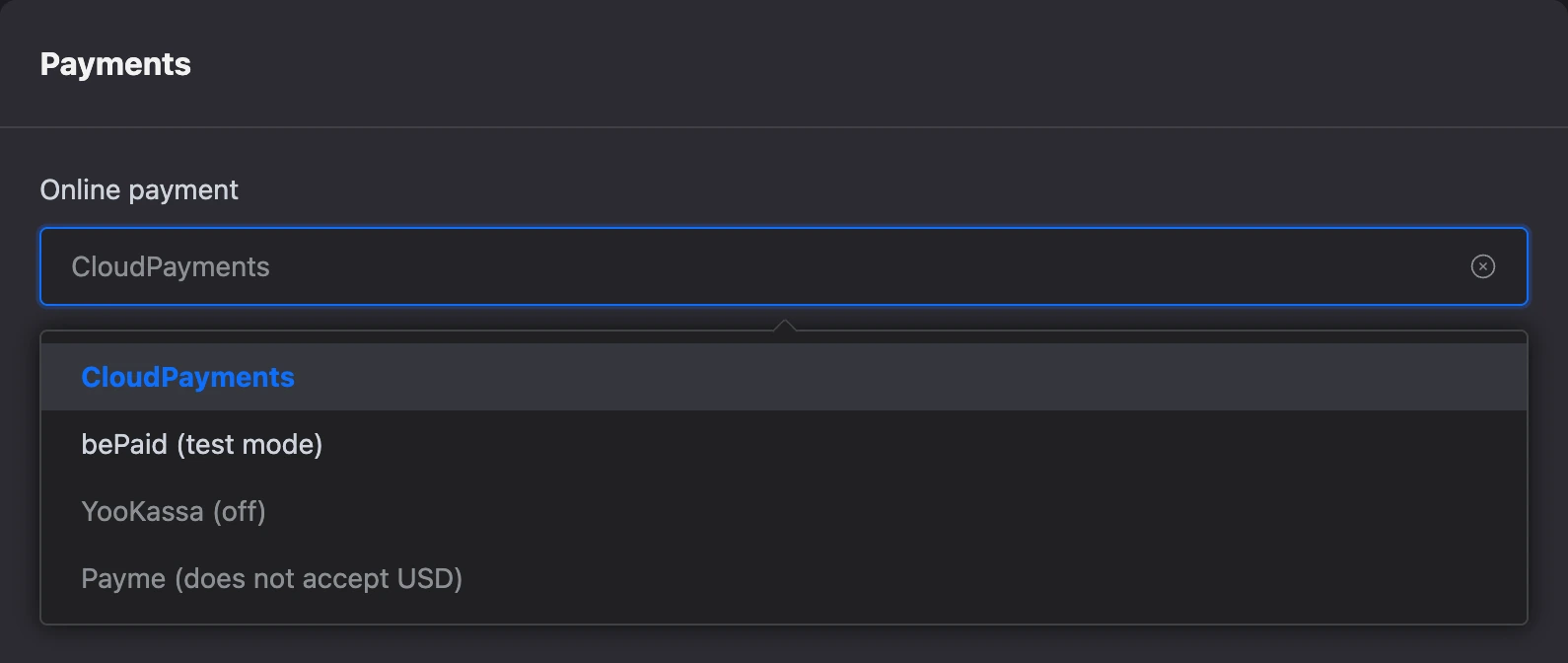
In the "Online payment" list, a system may be unavailable for selection. The reason is given in brackets next to its name:
| Mark | What it means |
|---|---|
| "test mode" | The account works in the payment system's test mode. You can choose it, but it does not accept real money |
| "off" | "Accept payments" is turned off for the account in the project settings |
| "does not accept RUB" (or another currency) | The payment system does not work with the shop's currency |
The project owner sees the "Set up payment systems" link under the field — it leads to the "Accepting payments" tab.
How payment works
- The customer places an order and chooses to pay online.
- The channel — the bot or the mini app — gives them a link to the payment system's payment page.
- After paying, the customer returns to a platform page with the result: "Payment received", "Checking the payment" or "Payment failed".
- The payment system reports the payment to the platform, and the order gets the "Paid" payment status. If the order was placed in the bot, the bot writes to the customer that the order is paid.
An order that is not paid within the set time is canceled automatically, and the products go back to stock. If the payment arrives after such a cancellation, the order goes back to "New" — as long as the products are in stock. More details are on the Orders and customers page.
Payment on delivery
The "Payment on delivery" → "Allow" switch. The customer pays in cash or by card to the courier or at the pickup point. This method is on by default.
You set the payment status of such an order yourself: open the order and choose "Paid" when you have received the money.
An order with payment on delivery waits to be taken into work. If it has not been moved out of the "New" status within 3 days, it is canceled, and the products go back to stock.
Payment link from the order
You can also create a payment link yourself — for example, after a call with the customer or for an order placed manually.
- Open the order.
- In the "Status" block, click "Payment link".
- Copy the link with the "Copy" button and send it to the customer.
The button is shown for orders that are not canceled and have the "Unpaid" or "Awaiting payment" payment status, and it is available to a team member with the "Process orders" permission. Within 30 minutes, clicking it again gives the same link, as long as there has been no result for it.
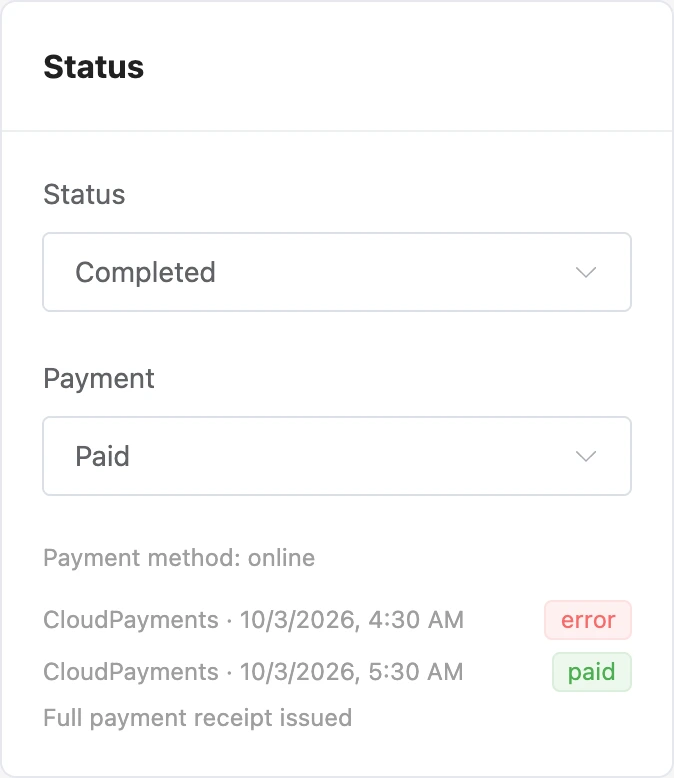
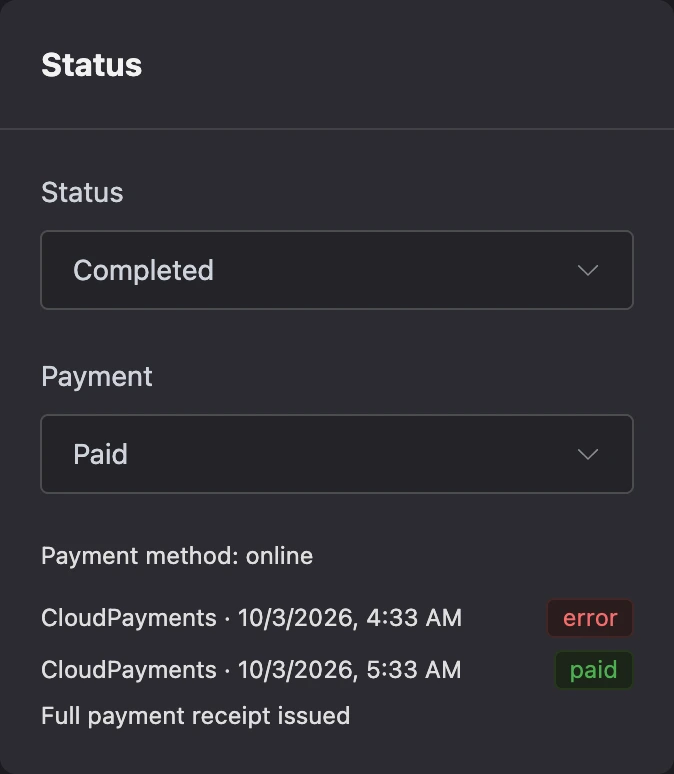
Under the statuses in the order card, the payment attempts are listed: the payment system, the time and the result — "pending", "paid", "canceled", "refunded" or "error".


Refunds
The platform does not refund money itself. A refund is made in the payment system's dashboard:
- If you refunded the money in the payment system, it reports this, and the order gets the "Refunded" payment status.
- If you cancel a paid order in the shop, the payment status changes to "Refunded" right away, and the products go back to stock. You still need to refund the money to the customer in the payment system — the shop warns you about this when cancelling.
Receipts
Receipts are created by the payment system — if "Send the receipt to the payment system" is turned on for its account in the project settings. The shop passes the order items and delivery to the receipt.
What is set up in the shop:
- In the product card, in the "Receipt" block — the "Item type" ("Goods" or "Service") and the "VAT rate". If no rate is chosen for the product, the rate from the payment system settings is used; it also applies to delivery.
- A receipt needs the customer's phone or email. If the order has neither, the payment is not created: "To send a receipt, add the customer phone or email to the order". Make the phone or email required in the "Checkout" section.
Full payment receipt
When a shop order is paid, a prepayment receipt is issued. When the order is moved to the "Completed" status, the platform sends a second receipt — the full payment receipt. This is turned on for the payment system account with the "Issue the full payment receipt" setting; turn it off if you issue this receipt yourself.
The state of the second receipt is shown in the order card, under the payment:
| Text | What it means |
|---|---|
| "The full payment receipt will be issued when the order is completed" | The order is paid but not completed yet |
| "Full payment receipt issued" | The receipt has been sent |
| "Full payment receipt not issued" | The payment system did not accept the receipt. Next to it is the "Try again" button |
The receipt settings — tax system, FFD version, default VAT rate — and which payment systems support the second receipt are described in the Accepting payments section.
If something does not work
| What you see | Cause |
|---|---|
| "The project has no payment systems connected." | No payment system is connected in the project. The project owner can connect one |
| There is no "Payments" item in the shop settings | The team member does not have the "Configure shops" permission |
| "The shop has no payment account for online payments." | When creating a payment link: no payment system is chosen in the shop, it is turned off, or it does not accept the shop's currency |
| The customer does not see online payment at checkout | The same cause: the account is not chosen, is turned off or does not accept the shop's currency |
| "The payment system did not create the payment. Check the access keys or try again later." | The payment system rejected the request. Check the account keys in the project settings |
| "The …% VAT rate does not fit this payment system receipt." | Choose another rate for the product or in the receipt settings |
| In the order history: "The order was paid twice. The extra payment has to be refunded." | The customer paid for the order twice. Refund the second payment in the payment system's dashboard |
| "The account is used to accept payments in the shop "…". Choose another one there first." | A payment system cannot be disconnected in the project while it is chosen in a shop |