

Categories, characteristics and filters
Categories sort the catalog into sections. Characteristics describe a product — brand, material, volume — and give the customer filters. They can be edited by the project owner and by a team member with the "Products and categories" permission.
Categories
Open the shop and choose "Categories" in the menu. Categories form a tree up to 3 levels deep: for example, "Bouquets" → "Roses" → "Red". Each category shows the number of products in it.
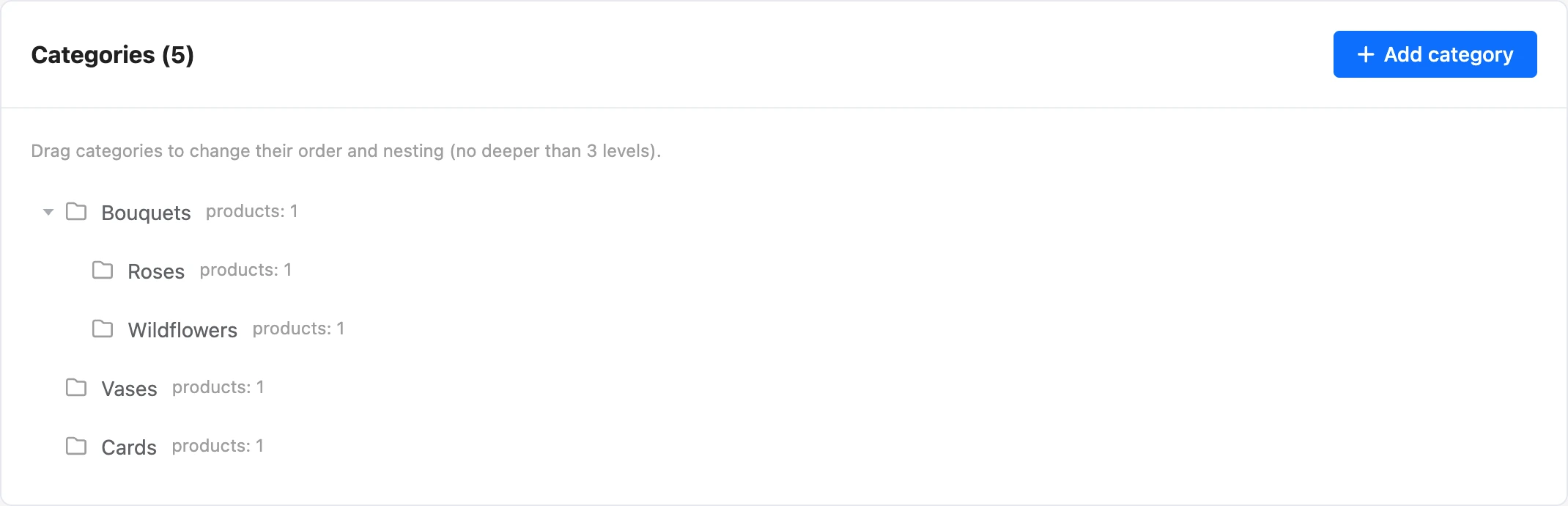
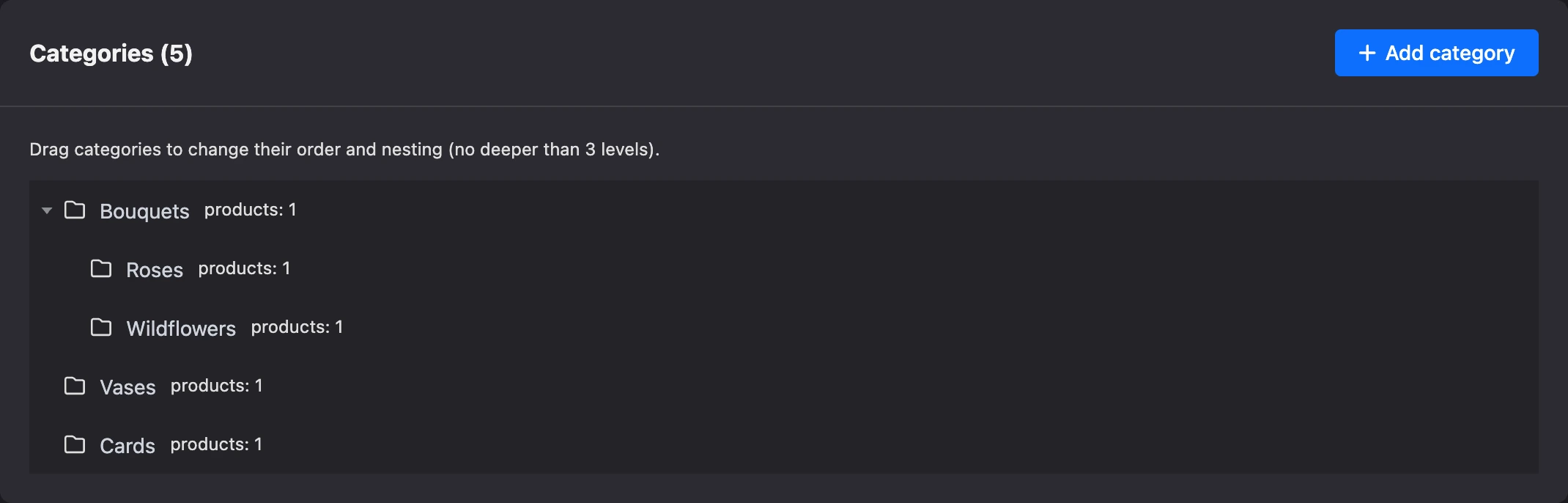
- Add. The "Add category" button creates a top-level category. The "+" icon in a category's row is "Add subcategory".
- Rename. The pencil icon in the row.
- Rearrange. Drag a category to change the order or to nest it inside another one.
- Delete. The trash icon. Products stay in the shop when a category is deleted. The subcategories of a deleted category move up to its level.
A product can belong to several categories. There are three ways to assign categories:
- in the product card, in the "Categories" block;
- in the product list: tick the products and choose "Categories" → "Add to category";
- during import — with a category column.
In the bot and the mini app, a category is shown together with its subcategories: in "Bouquets", the customer also sees the products from "Roses".
A shop can have no more than 500 categories.
Characteristics
Open the shop and choose "Characteristics" in the menu. This is the shop's list of characteristics: a characteristic is created once, and its value is set for each product.
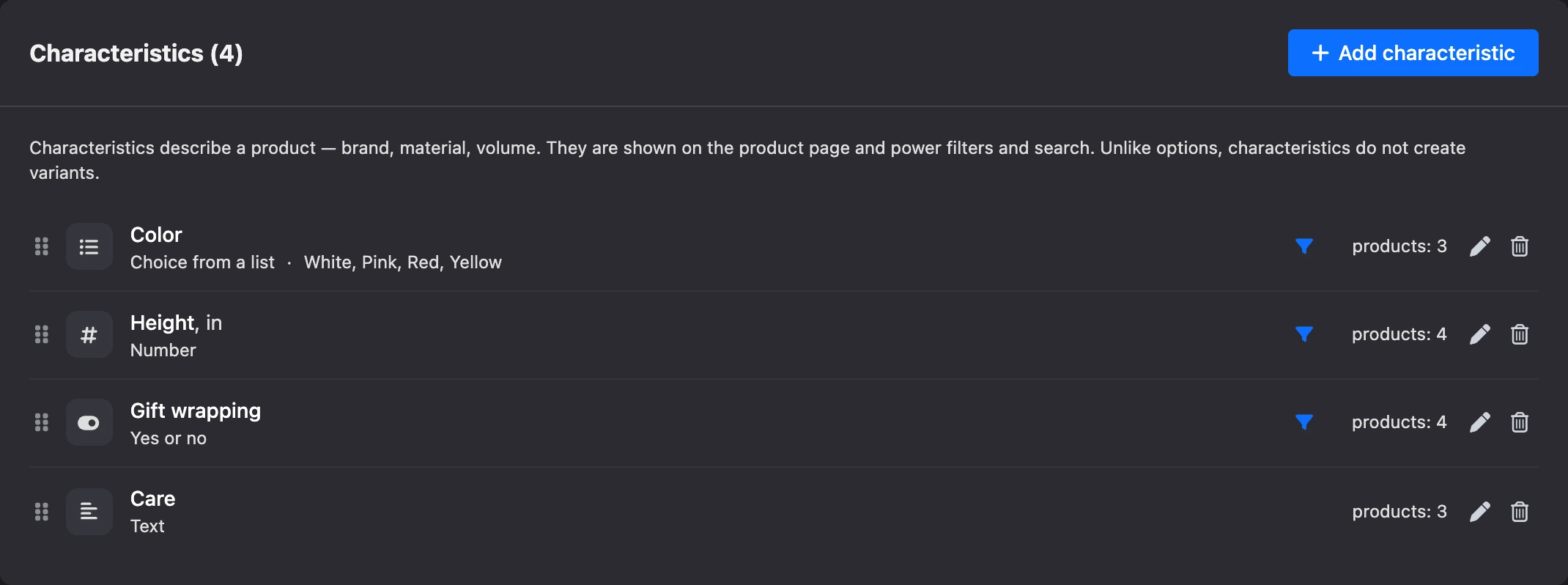
Characteristics are shown in the product card, and filters and search work by them. Unlike options, characteristics do not create variants: "Material: cotton" is a characteristic, "Size: M" is an option.

Add a characteristic
- Click "Add characteristic".
- Enter a name — for example, "Material" or "Volume".
- Choose the type.
- For list types, add values. You can paste a list from a spreadsheet — one value per line.
- Leave "Show in filters" on if products should be filtered by this characteristic.
- Click "Save".
| Type | What for | Example |
|---|---|---|
| "Choice from a list" | One value from a list | Brand, country |
| "Several from a list" | Several values from a list | Materials, purpose |
| "Number" | A number with a unit | Volume, weight, power |
| "Yes or no" | Has it or not | "Dishwasher safe" |
| "Text" | Its own description for each product. Not included in filters | Composition, care instructions |
The "Number" type has the "Unit" field — "l", "kg", "W".
The type can only be switched between "Choice from a list" and "Several from a list". The type of a number, text and "yes or no" cannot be changed: product values would be lost.
The order of characteristics is changed by dragging. The filter icon in a row means the characteristic is shown in filters. On the right is the number of products that have it filled in.
When a characteristic is deleted, it disappears from all products — the platform warns you how many.
Fill in a characteristic for a product
In the product card, in the "Characteristics" block, choose a characteristic in the "Add characteristic" list and enter a value. For lists, you can choose a value or type a new one — it is added to the list of values. The "New characteristic" item at the bottom of the list creates a characteristic without leaving the product.
Characteristics can also be loaded from a spreadsheet — see Product import.
Limits
- A shop can have no more than 200 characteristics.
- A list characteristic can have no more than 1000 values.
- A product can have no more than 100 characteristics; a "Several from a list" characteristic can have no more than 50 values.
Filters in the product list
In the "Products" section, the "Filters" button opens filtering by characteristics and options:
- list characteristics and options — checkboxes with product counts;
- "Number" — the "from" and "to" fields;
- "Yes or no" — "Any", "Yes", "No".
Within one characteristic, values work as "or", and between characteristics as "and": "Material: cotton or linen" and "Brand: Daisy". The number on the button shows how many filters are on. "Reset filters" clears them all.
The same characteristics work for the customer: in a mini app, you can turn on a filter panel for the product list.
If the button shows "Nothing to filter by yet", add characteristics or options to products.