

Creating shops and the shop list
Create a shop
- Open the project and choose "Shops" in the menu.
- Click "Create".
- Enter a name — for example, "Daisy" — and click "Create".
The shop opens on the "Products" section. The currency of a new shop is the Russian ruble; you can change it in the settings as long as the shop has no orders. Next:
- Check the currency and time zone, set up delivery and payment — Shop settings.
- Add products manually or load them from a spreadsheet — Products, Product import.
- Connect the shop to a bot or a mini app — Selling through the bot and the mini app.
The shop list
The list shows all shops of the project. The switch above the list changes the view: "List" or "Cards". On a card, the shop's currency is shown under the name. The chosen view is remembered in the browser.
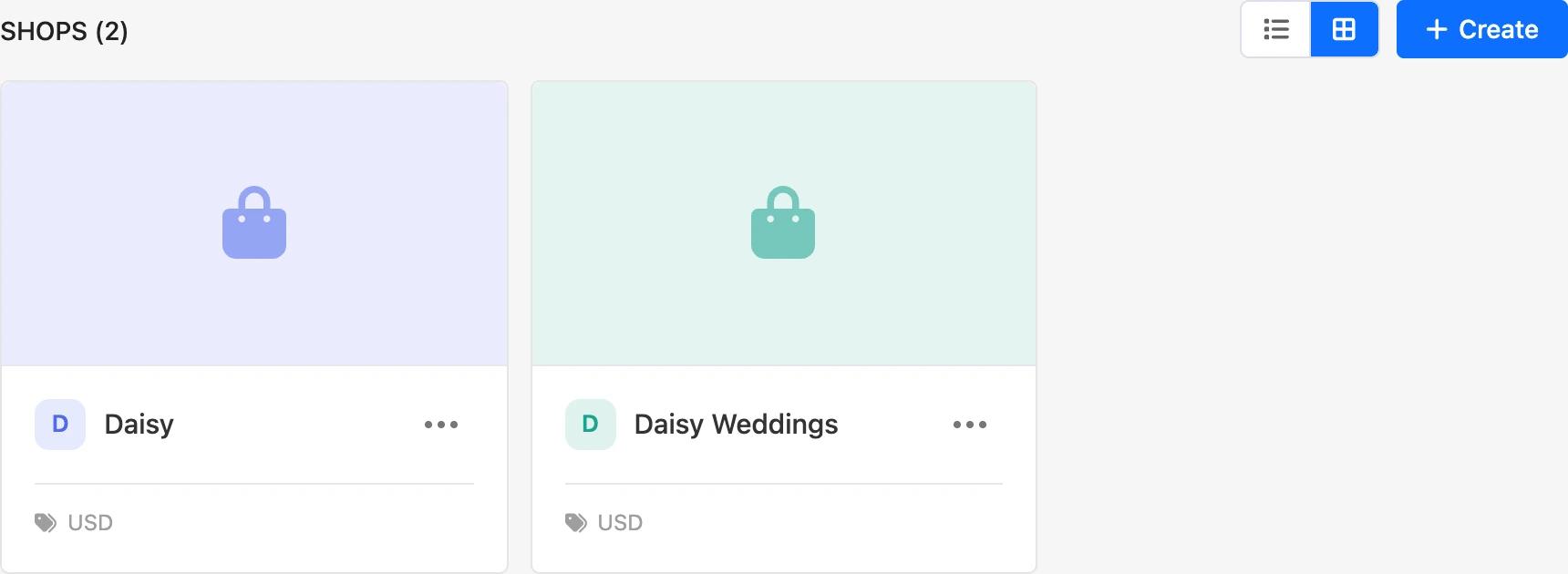
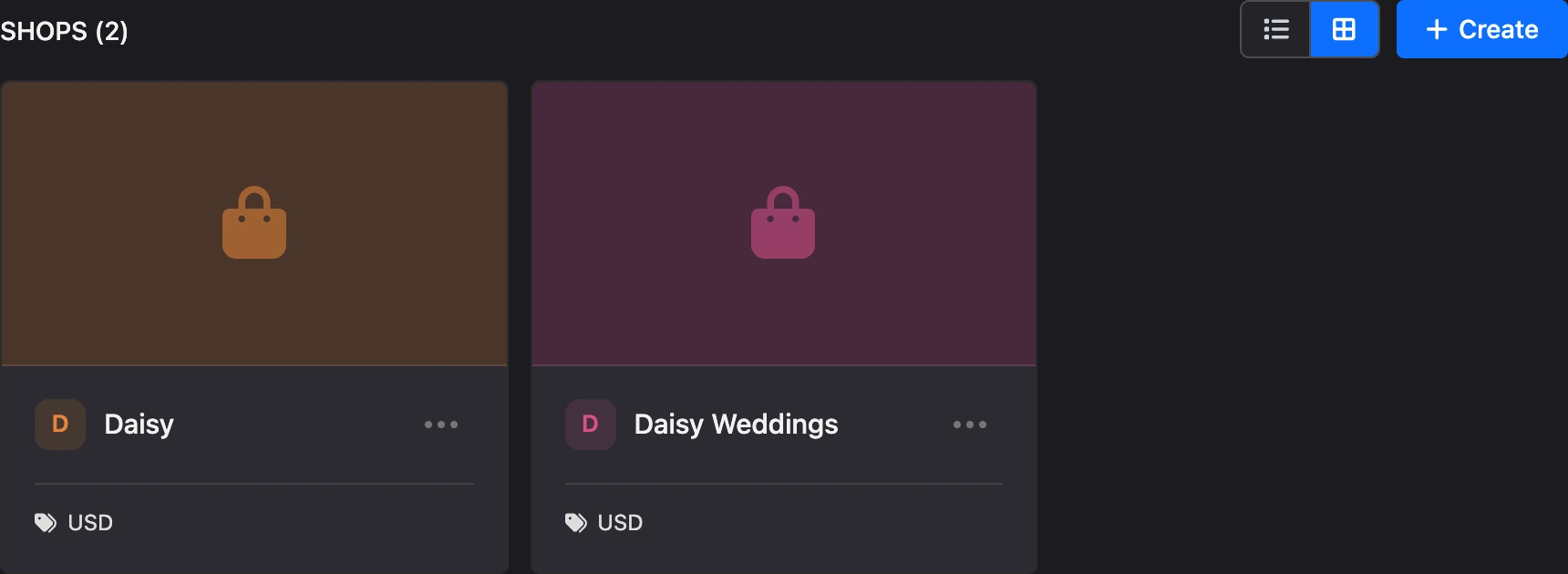
The order of shops is changed by dragging the icon on the left. The order is shared by all members of the project.
The "⋯" menu of a shop:
| Item | What it does |
|---|---|
| "Rename" | Changes the shop's name |
| "Icon" | Opens the "Shop icon" window: upload an image or replace it |
| "Duplicate" | Creates a copy of the shop together with the catalog |
| "Move to ..." | Moves the shop to another of your projects |
| "Delete" | Deletes the shop after confirmation |
Which items are visible depends on permissions: renaming and the icon require the "Configure shops" permission, a copy requires both "Create shops" and "Configure shops", deleting requires "Delete shops". Moving is available only to the project owner.
Icon
The icon is shown in the shop list and in the shop switcher — only in the dashboard; customers do not see it. JPG, PNG, GIF, WebP or AVIF images up to 5 MB are accepted. A square image looks best.
Copy of a shop
The copy gets a name with the "(copy)" mark, the same currency and icon. Categories, characteristics and products with their variants and photos are carried over to it. Orders, customers, delivery methods and the checkout and payment settings are not copied — you need to set them up again.
The catalog is copied in the background. While copying is in progress, the shop in the list has the "Copying…" mark, and it cannot be opened. It usually takes up to a minute.
If copying fails, the shop gets the "Copy failed" mark. Such a shop cannot be edited — delete it and make a new copy.
Moving to another project
Choose a project in the "Move the shop to another project" window and click "Move". The shop moves with its whole catalog, orders and customers and is placed at the top of the new project's list.
Warning
Payment systems and bots belong to the project. After moving, choose a payment system of the new project in the shop settings. In the bot and mini app blocks of the old project, the shop will no longer be available.
Shop switcher
At the top of an open shop's menu is its name. Click it to find another shop of the project by name, open one of the recent ones or create a new one. When you switch, you stay in the same section: from the "Orders" of one shop to the "Orders" of another.
If something does not work
| What you see | Cause |
|---|---|
| The "Create" button is disabled, with the hint "A project cannot have more than 100 shops" | The project has reached its shop limit. Delete a shop you do not need |
| "You can create no more than 20 shops per day." | The daily limit has been reached. It counts both copies and shops that have already been deleted |
| The shop does not open, it has the "Copying…" mark | The copy's catalog is still being carried over. Wait |
| The "Copy failed" mark | Copying failed. Delete this copy and make a new one |