

Product import
Import loads products from a spreadsheet: it creates new products and updates existing ones. Open the shop, choose "Products" and click "Import". Import is available to the project owner and to a team member with the "Products and categories" permission.
The shop cannot export the catalog to a file.
Prepare the file
XLSX, ODS and CSV spreadsheets are accepted. The first row contains column headers, and each following row is one product. Columns can have any names: you will specify which column means what in the second step.
| Product field | What the cell should contain |
|---|---|
| "Name" | The product's name. Required field |
| "Price" | A number in the shop's currency, e.g. 1990.50 |
| "Compare-at price" | A number in the shop's currency |
| "SKU" | The product code, up to 64 characters |
| "Stock" | A non-negative whole number. An empty cell for a new product means stock is not tracked |
| "Category" | Nest with "/", separate several categories with ";": Bouquets / Roses; New |
| "Description" | The description text |
| "Photo" | Photo links separated by spaces or commas |
Example spreadsheet:
| Name | Price | SKU | Stock | Category | Photo |
|---|---|---|---|---|---|
| "Daisy" bouquet | 1990 | RM-001 | 12 | Bouquets / Wildflowers | https://example.com/romashka.jpg |
| Glass vase | 850.50 | VZ-014 | 5 | Vases; New | https://example.com/vaza.jpg |
What to know about the file:
- CSV. The column separator — comma, semicolon or tab — is detected automatically. The encoding is UTF-8 or Windows-1251, which the Russian version of Excel uses.
- Categories. Import creates categories that do not exist yet. Levels deeper than the third are dropped.
- Photos. The platform downloads photos by their links — links must open without authorization and start with
http://orhttps://. Formats: JPG, PNG, GIF, WebP. - Characteristics. Columns can fill product characteristics. Create the characteristic in advance — a column with the same name is picked automatically. For the "Several from a list" type, separate values with ";", for "Yes or no" use "yes", "no", 1 or 0.
- Options and variants are not loaded from a spreadsheet — they are added in the product card.
Upload
-
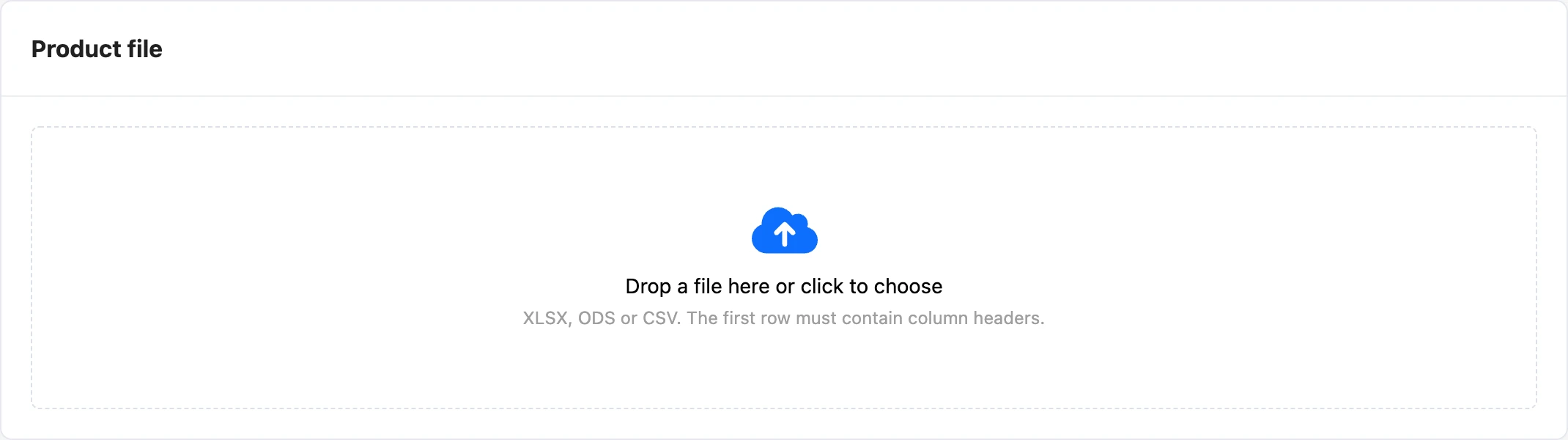
Drag the file onto the "Product file" area, or click it and choose the file.
-
In the "Map columns" step, choose a spreadsheet column for each product field. The platform fills in familiar column names itself. A field without a column is "Do not import". At the bottom, the "First rows" of the file are shown for checking.
-
Below, in the "Characteristics" block, choose columns for characteristics. You can also create a characteristic here — "New characteristic".
-
Choose what to do "If the product already exists":
Option What happens "Add as new" Each row creates a new product "Update by SKU" The product with this SKU is updated, other rows create new products "Update by name" The product with this name is updated, other rows create new products -
Click "Start import".


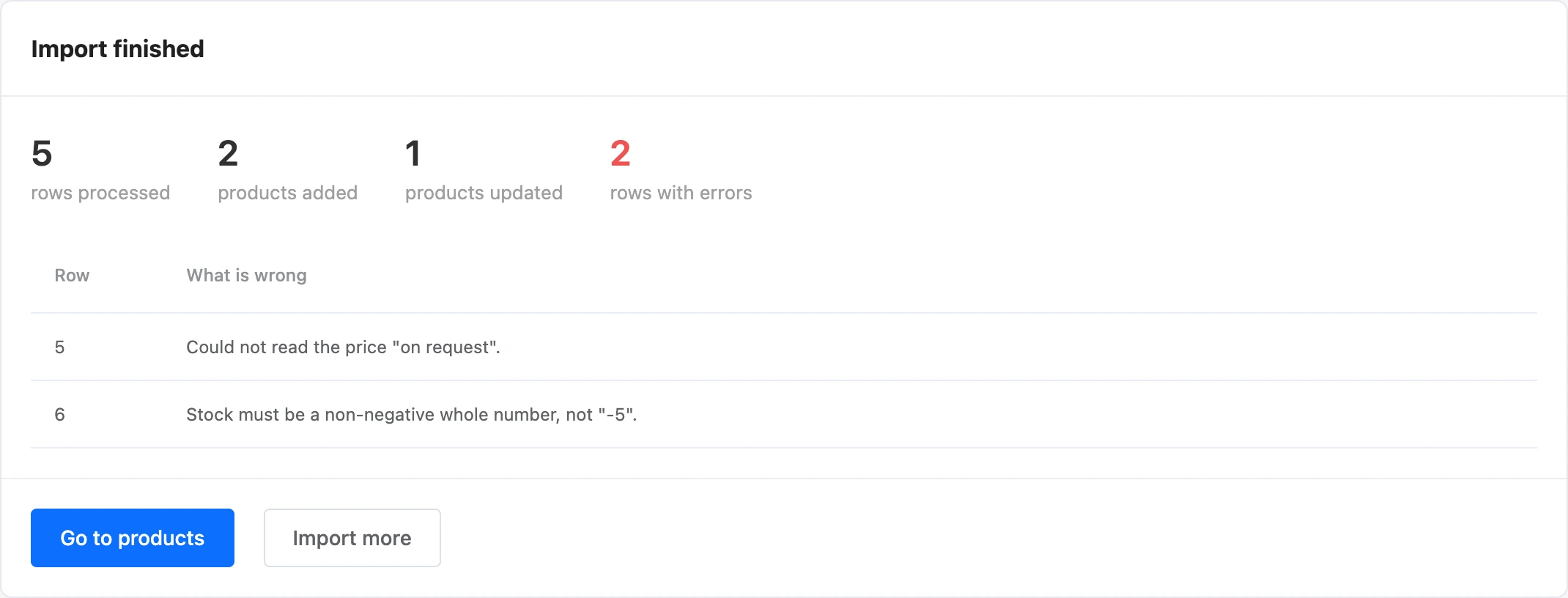
Import runs in the background. The page shows counters: "rows processed", "products added", "products updated", "rows with errors". You can close the page: the import will continue. If you open "Import" while it is running, you will see its progress. The result is shown only on the open page — after you leave it, check the result in the product list. When the import is finished, the "Go to products" button leads to the catalog, and "Import more" to uploading the next file.
Under the counters is a table with the "Row" and "What is wrong" columns: the row numbers of the file and the reasons why a row was not loaded or was loaded only partly.
How products are updated
- Empty cells do not erase product data: only what is filled in is updated.
- Categories from the file are added to the ones the product already has.
- Photos are loaded only if the product has no photos yet.
- For a product with variants, the stock column is skipped: stock is kept per variant.
Tip
To update prices and stock, upload a spreadsheet with the "SKU", "Price" and "Stock" columns and the "Update by SKU" option. You still have to specify the name column — without it, the import will not start.
Limits
- One import processes no more than 20,000 rows.
- One import downloads no more than 10,000 photos, and no more than 50 per product.
- A shop can have no more than 10,000 products and 500 categories: rows over the limit end up in the errors.
- A product can have no more than 100 characteristics.
- The error table shows the first 100 entries.
- Only one import runs at a time.
If something does not work
| Message | Cause |
|---|---|
| "XLSX, ODS and CSV spreadsheets can be imported." | The file has a different format — for example, the old XLS |
| "Could not read the file. Save the spreadsheet as XLSX or CSV." | The file is damaged or was saved with an error |
| "An import is already running. Please wait until it finishes." | The previous import has not finished yet |
| "To find products by SKU, choose the SKU column." | "Update by SKU" is chosen, but no column is specified for the "SKU" field |
| "The product name is missing." | The name in the row is empty, and no product to update was found |
| "Could not read the price "…"." | The price cell does not contain a number |
| "Stock must be a non-negative whole number, not "…"." | The stock cell contains a fractional or negative number or text |
| "Could not upload the photo …" | The link does not open or does not lead to an image. The product is still loaded — without this photo |
| "Characteristic "…": the value "…" does not fit." | The value does not match the characteristic's type. The product is loaded without it |
| "The import was stopped: its author can no longer edit the catalog." | The team member who started the import lost the "Products and categories" permission during the import |
| "The import was interrupted by an error. Please try again." | A failure on the platform side. Start the import again — rows that have already been loaded are easier to update by SKU |