

Products
Open the shop and choose "Products" in the menu. The catalog can be edited by the project owner and by a team member with the "Products and categories" permission.
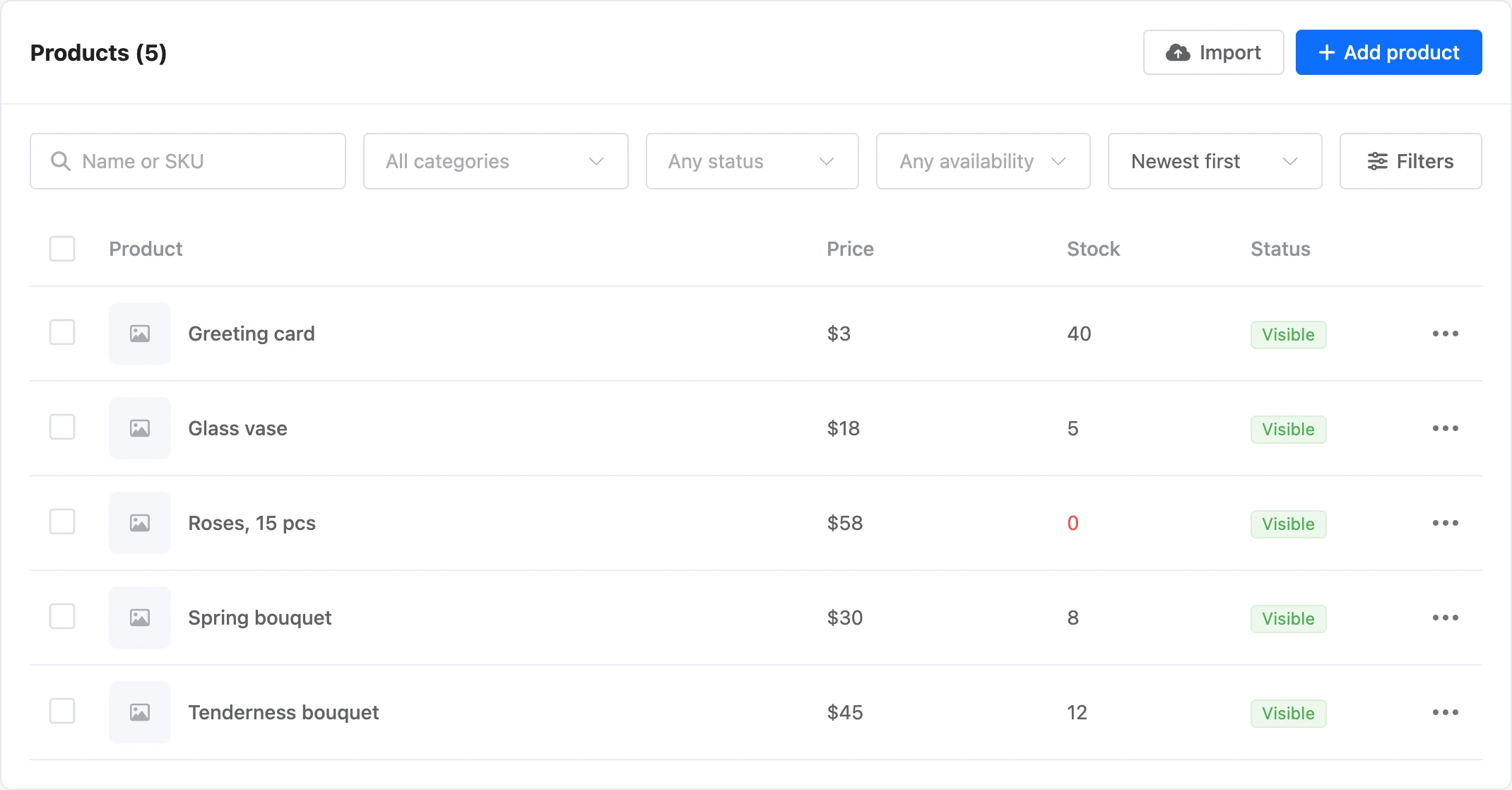
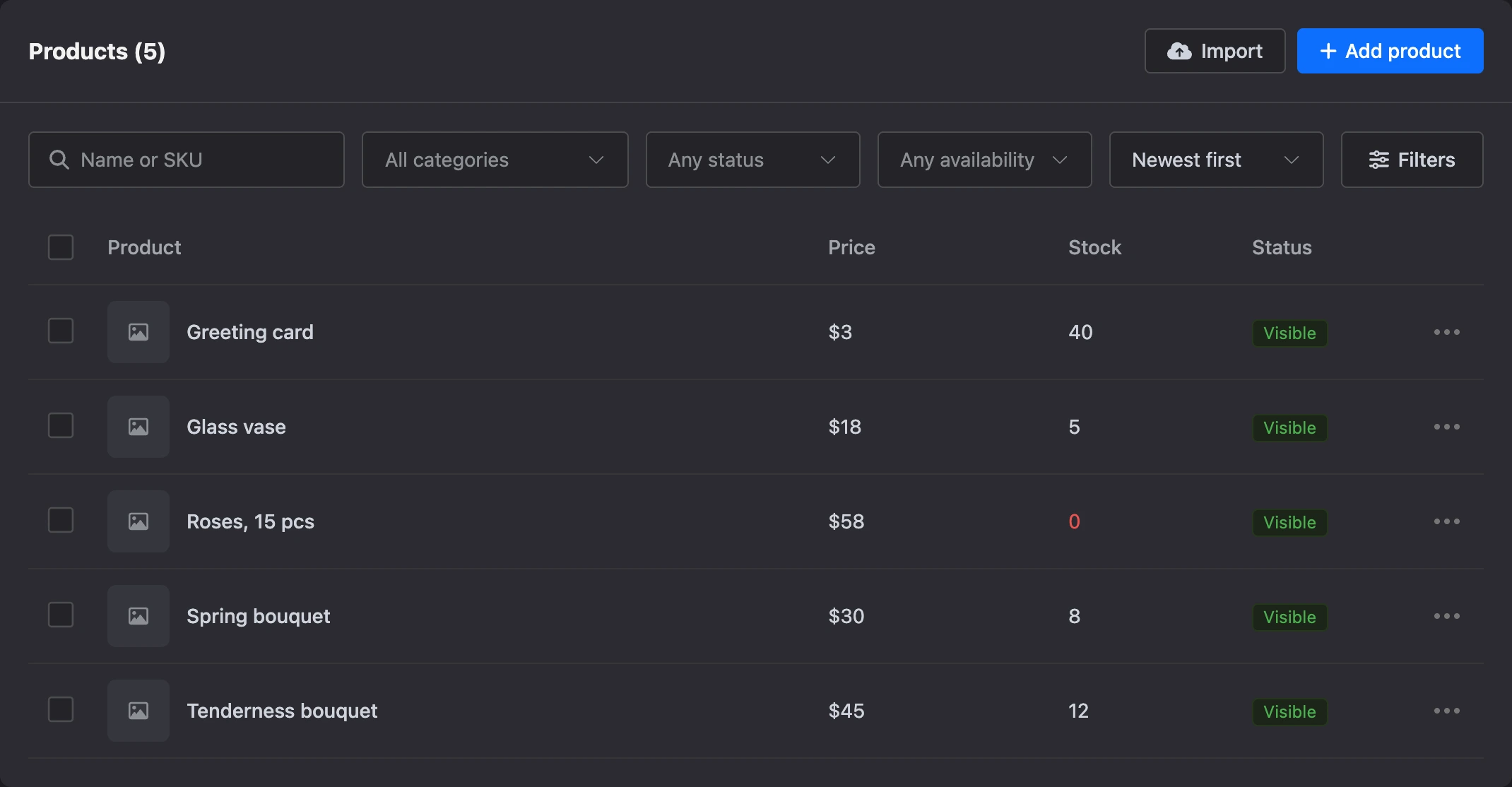
The product list
The table has four columns:
| Column | What it shows |
|---|---|
| "Product" | The main photo, the name, the SKU. A product with variants shows "variants: N" |
| "Price" | The product's price. If variants have different prices — "from …" with the lowest one. For a product without variants, the compare-at price is crossed out under the price |
| "Stock" | The number in stock or "not tracked" |
| "Status" | "Visible" or "Hidden" |
Above the table are search and filters:
- search by name or SKU;
- category — any from the tree or "No category";
- status — "Visible" or "Hidden";
- availability — "In stock" or "Out of stock";
- sorting — "Newest first", "Oldest first", "By name", "Cheapest first", "Most expensive first";
- the "Filters" button — filtering by characteristics and options, described on the Categories, characteristics and filters page.
A click on a row opens the product card. The row's "⋯" menu has "Edit", "Duplicate", "Delete".
Actions on several products
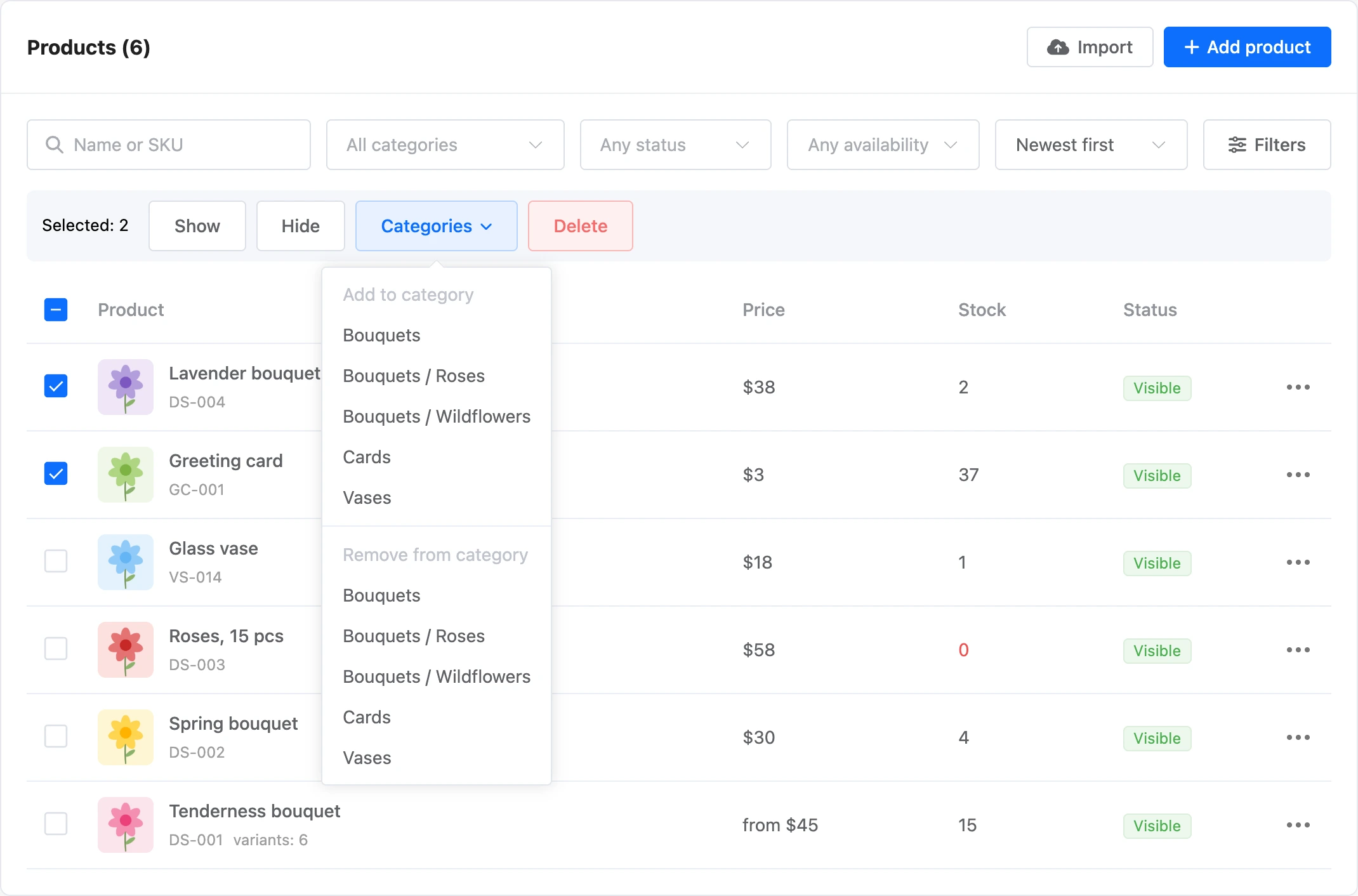
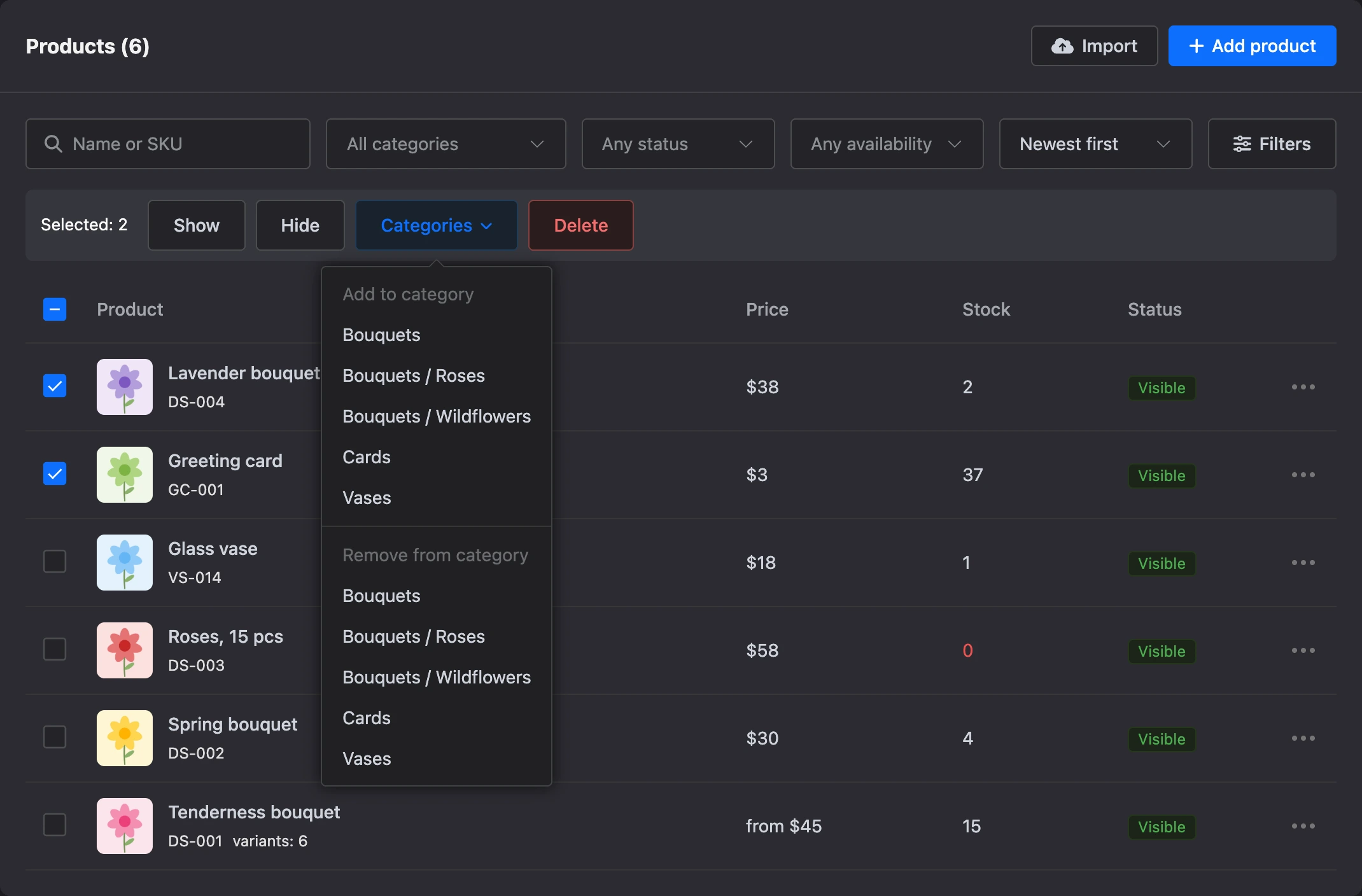
Tick the products — the "Selected: N" panel appears above the table:
- "Show" and "Hide" — change the status of the selected products;
- "Categories" — "Add to category" or "Remove from category";
- "Delete" — deletes the selected products after confirmation.
Add a product
- Click "Add product".
- Enter the name and price. Only the name is required; the price is 0 by default.
- Add photos, a description, stock, categories.
- Click "Save".
A new product appears on the storefront right away. To prepare it in advance, turn off "Show on the storefront" before saving.
Many products are easier to load from a spreadsheet — see Product import.
Product card
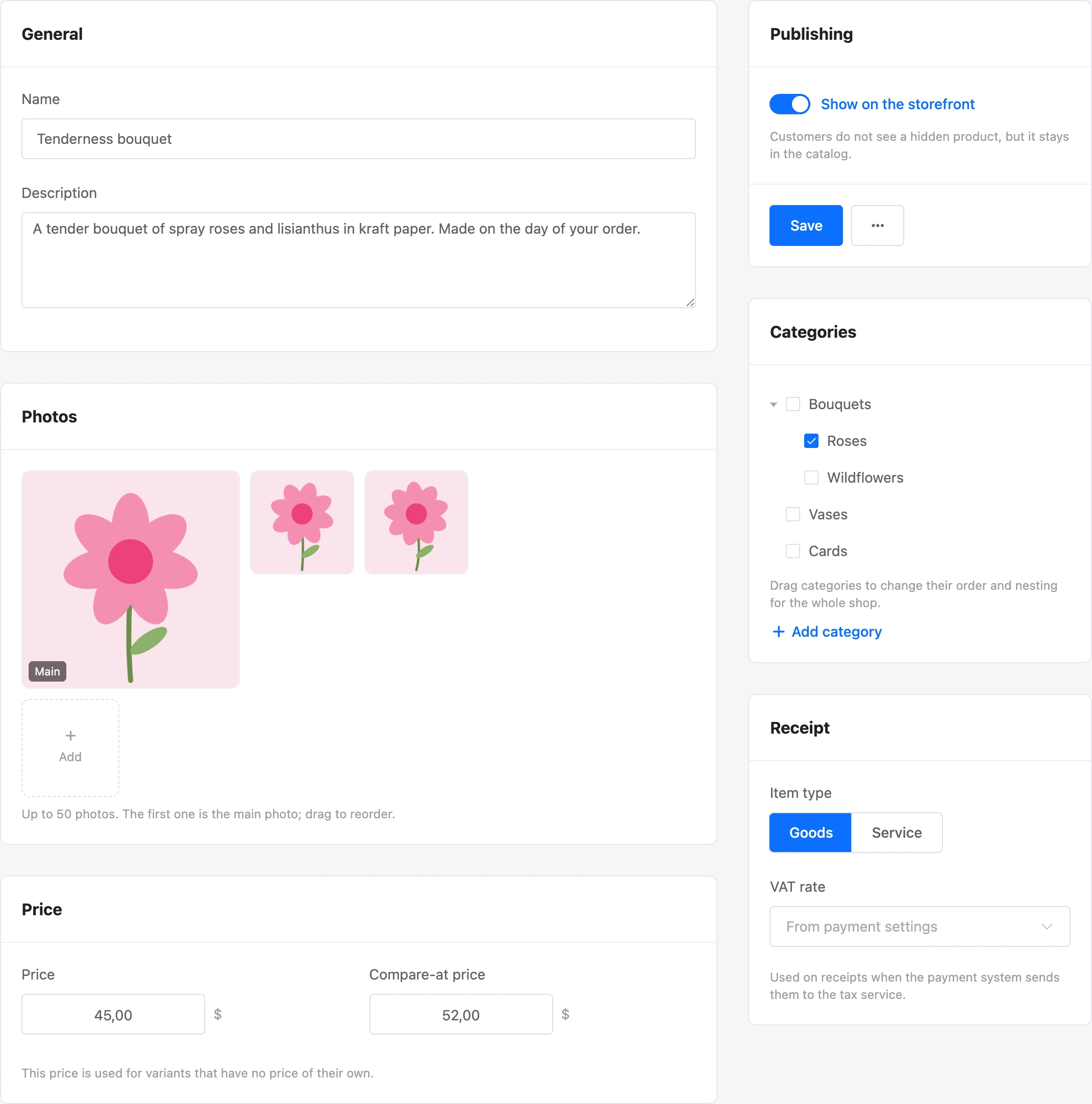
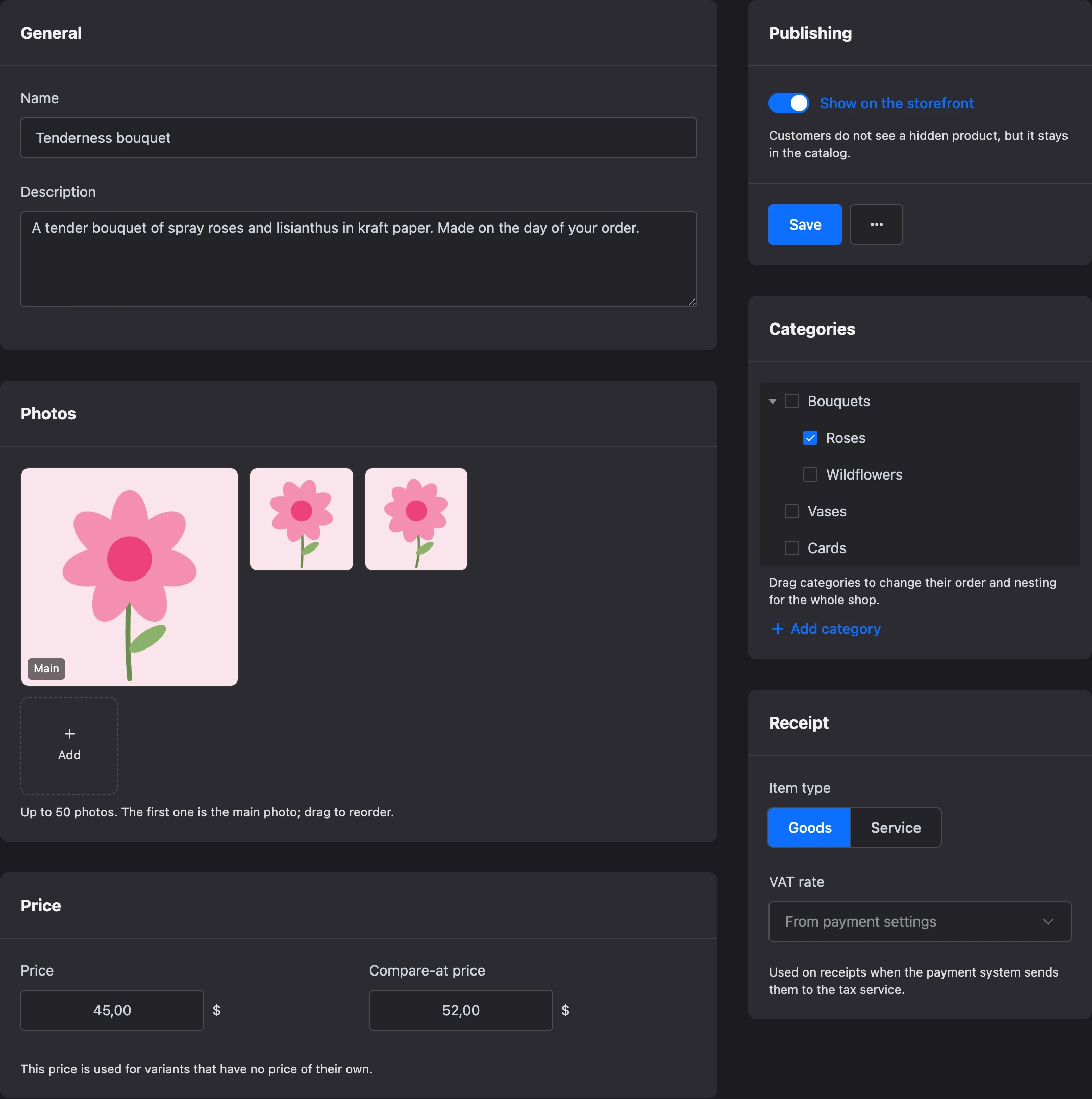
General
"Name" — up to 255 characters. "Description" — plain text up to 20,000 characters.
Photos
Click "Add" and choose files — you can choose several at once. JPG, PNG, GIF and WebP are accepted. A product can have up to 50 photos.
The first photo is the main one: it is shown in lists and in the order. The order is changed by dragging. The platform scales large photos down to 2000 pixels on the longer side.
Price
- "Price" — the product's price in the shop's currency.
- "Compare-at price" — shown crossed out next to the current price. Leave it empty if there is no discount.
For a product with variants, the product's price is used for the variants that have no price of their own.
Inventory
- "SKU" — your product code, up to 64 characters. It is used to search for the product in the list and to find it during import.
- "Track stock" — turn it on and enter a number. Stock goes down with every order and comes back when an order is canceled. When the stock runs out, the product gets the "Out of stock" mark and cannot be ordered.
If the switch is off, the stock is "not tracked": the product can be ordered without limits.
A product with variants has no "Inventory" block — the SKU and stock are set for each variant.
Characteristics
Brand, material, volume and other properties of the product. Choose a characteristic in the "Add characteristic" list and enter a value. Characteristics are described on the Categories, characteristics and filters page.
Publishing
The "Show on the storefront" switch. Customers do not see a hidden product, but it stays in the catalog.
Next to the "Save" button is the "⋯" menu with the "Duplicate" and "Delete" items.
Categories
Tick the categories the product belongs to — there can be several. Here you can also add a category, rename it or drag it to another place: the changes apply to the whole shop.
Receipt
These fields go into the receipt if the payment system sends receipts to the tax service:
- "Item type" — "Goods" or "Service";
- "VAT rate" — the product's own rate. Empty — "From payment settings": the rate of the project's payment system is used.
A shop with the Uzbekistani som currency also has the "IKPU code" and "Package code" fields — they are needed for Payme fiscal receipts.
Options and variants
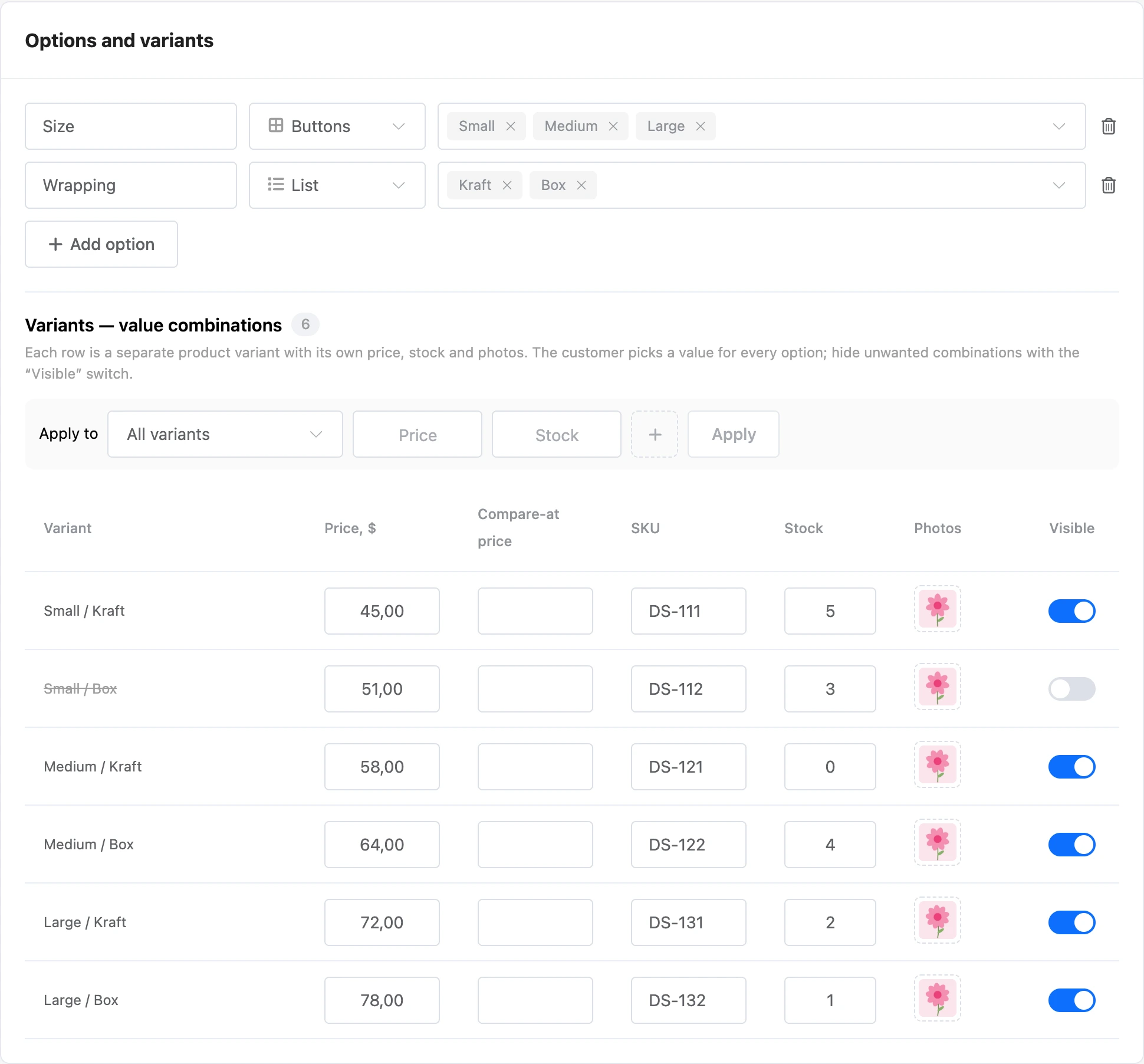
Options are properties the customer chooses: size, color, volume. Combinations of their values make variants — each with its own price, stock and photos.
Example: the "Daisy" bouquet has the "Size" option with the values "Small", "Medium", "Large" and the "Wrapping" option with the values "Kraft", "Box". This makes six variants: "Small / Kraft", "Small / Box" and so on.
Add an option
- In the "Options and variants" block, click "Add option".
- Enter a name — for example, "Size". The platform suggests names and values that other products of the shop already have.
- Choose the "Storefront display".
- Enter the values: type a value and press Enter.
A product can have up to 3 options, and an option up to 50 values.
How an option is displayed on the storefront:
| Display | What it looks like |
|---|---|
| "List" | A drop-down list of values |
| "Buttons" | Values as buttons |
| "Color" | Color circles. Choose a color for each value; the second color is for two-tone items |
| "Image" | Image swatches, e.g. fabric. A swatch is chosen from the product's photos |
The display only affects how the option is shown to the customer. It does not affect the set of variants.
Variants
Under the options, the "Variants — value combinations" table appears. Each row is a separate variant:
| Column | What it sets |
|---|---|
| "Price" | The variant's price. Empty — the product's price |
| "Compare-at price" | The variant's crossed-out price |
| "SKU" | The variant's SKU |
| "Stock" | The variant's stock. Empty ("∞") — not tracked |
| "Photos" | The variant's photos from the product gallery. The first one is the main one. Without its own photos, the customer sees the product gallery |
| "Visible" | Turn it off for combinations that do not exist: the customer will not be able to choose such a variant |
A product can have up to 250 variants. If there are more combinations, the first 250 are shown — remove the values you do not need.
To avoid filling in rows one by one, use the "Apply to" row: choose "All variants" or one value — for example, "Size: Large" — enter the price, stock or photos and click "Apply".
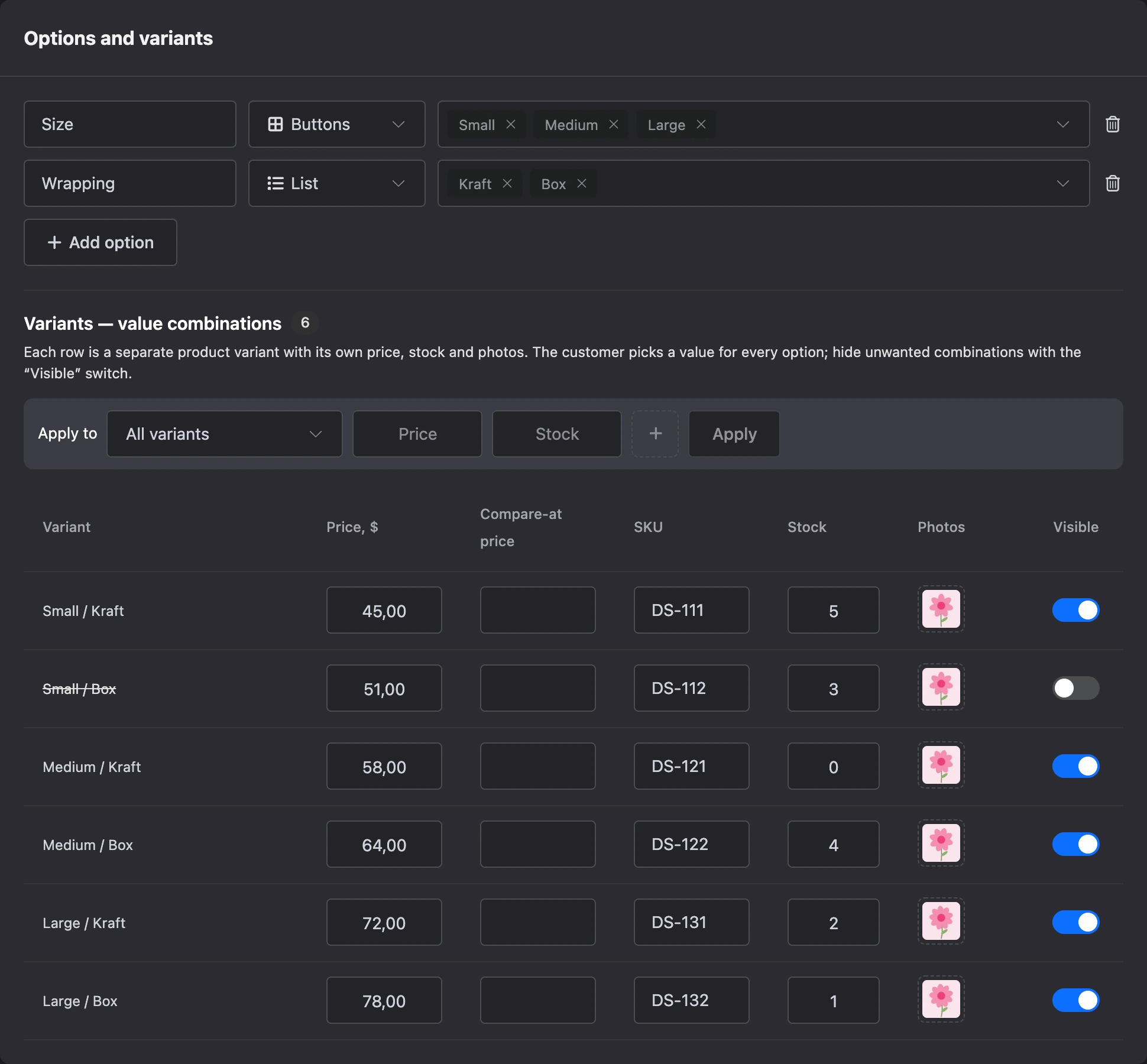
Note
A variant's photos can only be chosen from the photos of this product. Upload them to the "Photos" block first — or upload a new photo right from the selection window, and it will go to the product gallery.
Copy of a product
"Duplicate" creates a product named "… (copy)" with the same photos, prices, variants and characteristics. The copy is hidden from the storefront — check it and turn on "Show on the storefront".
Deleting a product
A deleted product disappears from the catalog and the storefront. It stays in orders that have already been placed: an order keeps the name, price and photo at the moment of purchase.
If something does not work
| What you see | Cause |
|---|---|
| The "Add product" button is disabled, "A shop cannot have more than 10000 products" | The shop has reached its product limit |
| "Option values are repeated." | The option has two identical values — letter case is ignored |
| "Photos must be JPG, PNG, GIF or WebP." | The file has a different format. SVG is not accepted |
| You received the notification "The product "…" in the shop "…" has been taken off sale" | The platform has hidden the product for violating the rules. The reason is given in the notification |
| The catalog cannot be edited, you received the notification "The shop "…" has been closed for violating the platform rules" | Editing the catalog is locked for the period given in the notification |