

Receipts
The platform does not print receipts itself and is not an online cash register. It passes the receipt contents to the payment system together with the payment, and the payment system registers the receipt through its online cash register and sends it to the buyer. That is why the online cash register must be connected in the payment system's dashboard.
Receipt settings depend on where you accept payments: in the project — for a shop and an online school — or in a chatbot.
Which systems send a receipt
- YooKassa — sends a receipt in the project and in the bot. In the project it supports the second receipt.
- T-Bank — sends a receipt in the project and in the bot. In the project it supports the second receipt.
- Robokassa — sends a receipt in the project and in the bot. In the project it supports the second receipt — only for a shop in Russia.
- CloudPayments — sends a receipt in the project and in the bot. In the project it supports the second receipt if "Cash register INN" is filled in.
- Prodamus — receives the order contents and creates the receipt itself according to its dashboard settings.
- bePaid — receipt data is not sent.
- LiqPay — receipt data is not sent.
- YooMoney — receipt data is not sent.
Receipts in the project
The settings are in the connection window on the "Accepting payments" tab, in the "Fiscal receipts (54-FZ)" block. Only systems that send a receipt have this block.
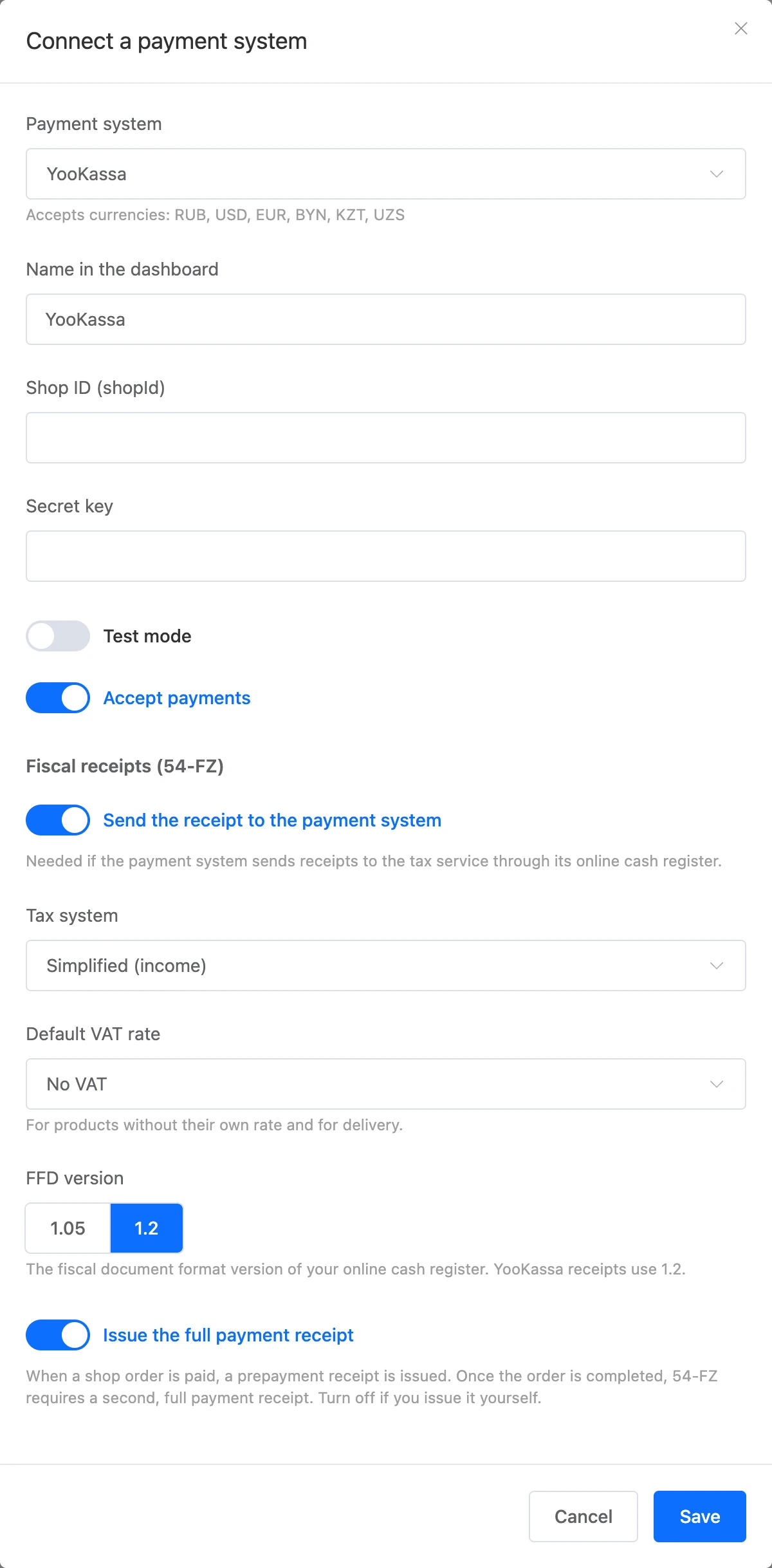
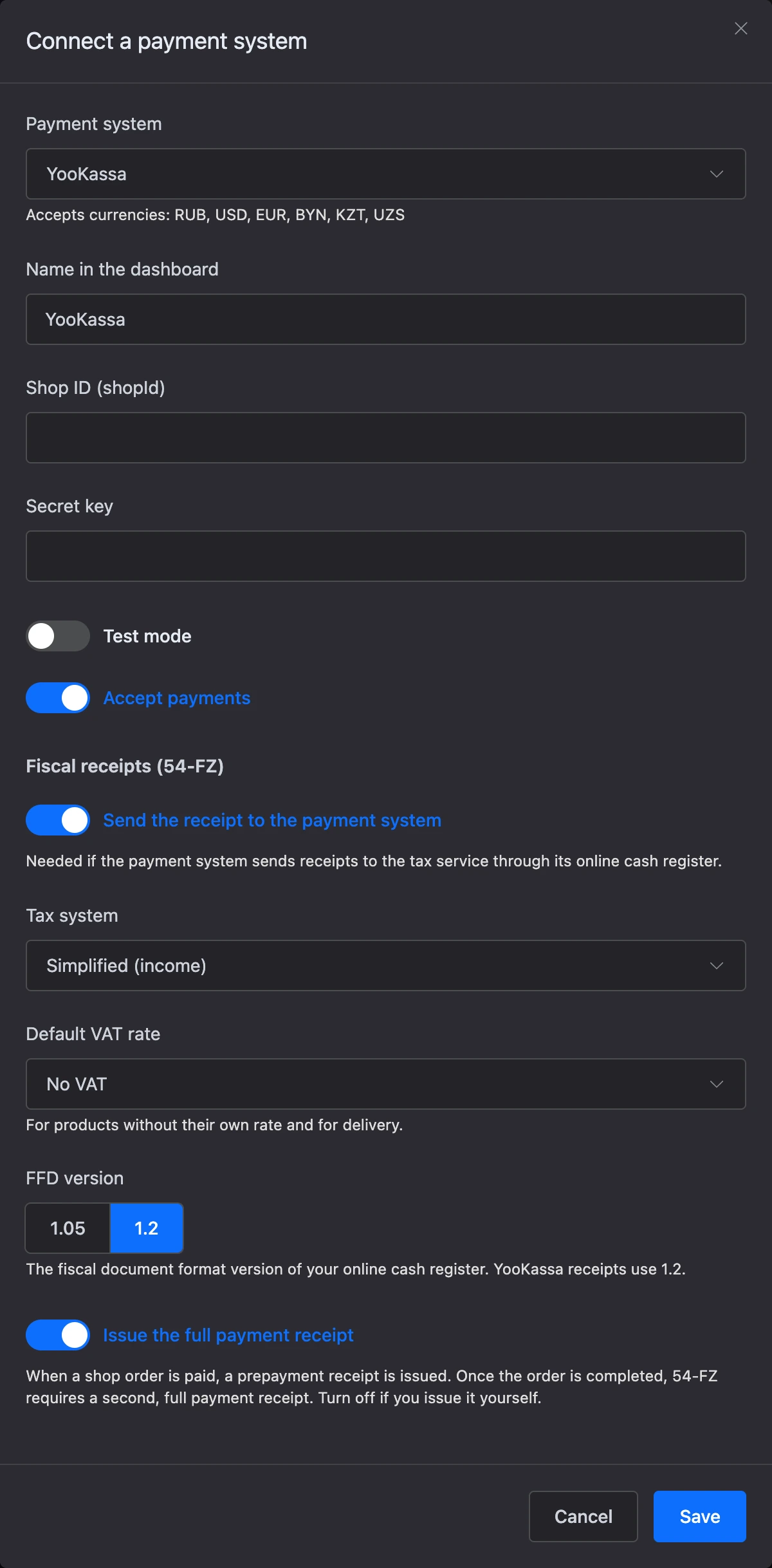
- "Send the receipt to the payment system" — the main switch. Turn it on if the payment system sends receipts to the tax service through its online cash register. While it is off, the other settings are hidden and the connection is marked "no receipts" in the list.
- "Tax system" — General (OSN), Simplified (income), Simplified (income minus expenses), Unified agricultural tax or Patent; YooKassa also has UTII (ENVD). If you leave the field empty — "As set in the payment system" — the tax system is not passed in the receipt, and the cash register takes it from its own settings.
- "Default VAT rate" — for products without their own rate and for delivery. Options: "No VAT", 0%, 5%, 7%, 10%, "20% (until 2026)" and 22%.
- "FFD version" — the fiscal document format version of your online cash register: 1.05 or 1.2. A new connection has 1.2.
- "Issue the full payment receipt" — the second receipt when a shop order is completed. More on it below.
Warning
With T-Bank, if the "Tax system" field is empty, OSN goes into the receipt. Choose your tax system explicitly.
Important
A receipt cannot be sent to the buyer without an address. If receipts are on and the order has neither the buyer's phone nor email, the payment will not start: "To send a receipt, add the customer phone or email to the order.".
VAT rate
The rate in the receipt is taken from the product or course, and if it is not set there — from the connection.
- Shop. A product has the "VAT rate" field in the "Receipt" block. The value "From payment settings" means the connection's rate. Delivery goes into the receipt as a separate line at the connection's rate.
Not every cash register accepts every rate:
- T-Bank does not accept the 20% rate.
- CloudPayments does not accept the 20% rate.
- Robokassa in Russia accepts 0%, 5%, 7%, 10%, 20% and 22%, in Kazakhstan — 0%, 5%, 12% and 16%.
- YooKassa accepts 0%, 5%, 7%, 10%, 20% and 22%.
Russian cash registers do not accept the 12% and 16% rates. If the rate does not fit, the payment is not created, with the message "The …% VAT rate does not fit this payment system receipt. Choose another rate for the product, course or in the receipt settings.".
What goes into the receipt
A shop order. Each order item is a separate receipt line: a product goes as a product, a service as a service, delivery as a service. The buyer pays before receiving the order, so the receipt has the "100% prepayment" flag.
The second receipt when an order is completed
When a shop order is paid, a prepayment receipt is issued. Once the buyer has received the order, 54-FZ requires a second, full payment receipt that offsets the prepayment. The platform sends it by itself.
How it works:
- You move the order to the "Completed" status.
- The platform passes the full payment receipt for this payment to the payment system.
- On the order page, the payment gets the mark "Full payment receipt issued". Before that it says "The full payment receipt will be issued when the order is completed".
The second receipt is sent only if all conditions are met:
- "Send the receipt to the payment system" and "Issue the full payment receipt" are on in the connection;
- the payment system supports the second receipt: YooKassa, T-Bank, Robokassa for a shop in Russia, CloudPayments with "Cash register INN" filled in;
- the order was paid online, and a prepayment receipt was sent with the payment;
- the order is not a test one.
If the payment system did not accept the receipt, the platform retries several times over several hours. When the attempts run out, the order history gets the note "The payment system did not accept the full payment receipt. Check the receipt settings and try again, or issue it in the payment system dashboard.", and a "Try again" button appears next to the payment.
Warning
If the order contents were changed after payment and the sum of the items no longer matches the amount paid, the second receipt will not be sent: "The order changed after payment: the full payment receipt does not match the paid amount. Issue the receipt in the payment system dashboard.".
If you issue the second receipt yourself, turn off "Issue the full payment receipt" in the connection.
Robokassa in Kazakhstan
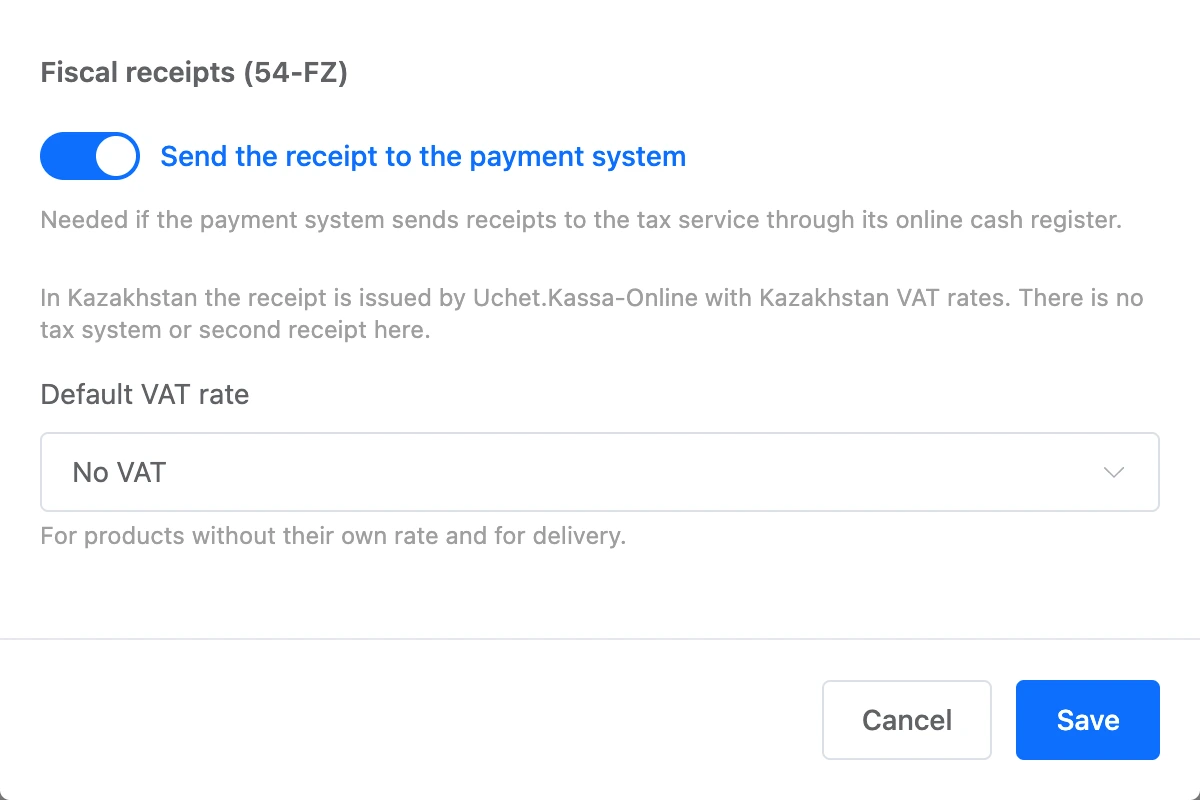
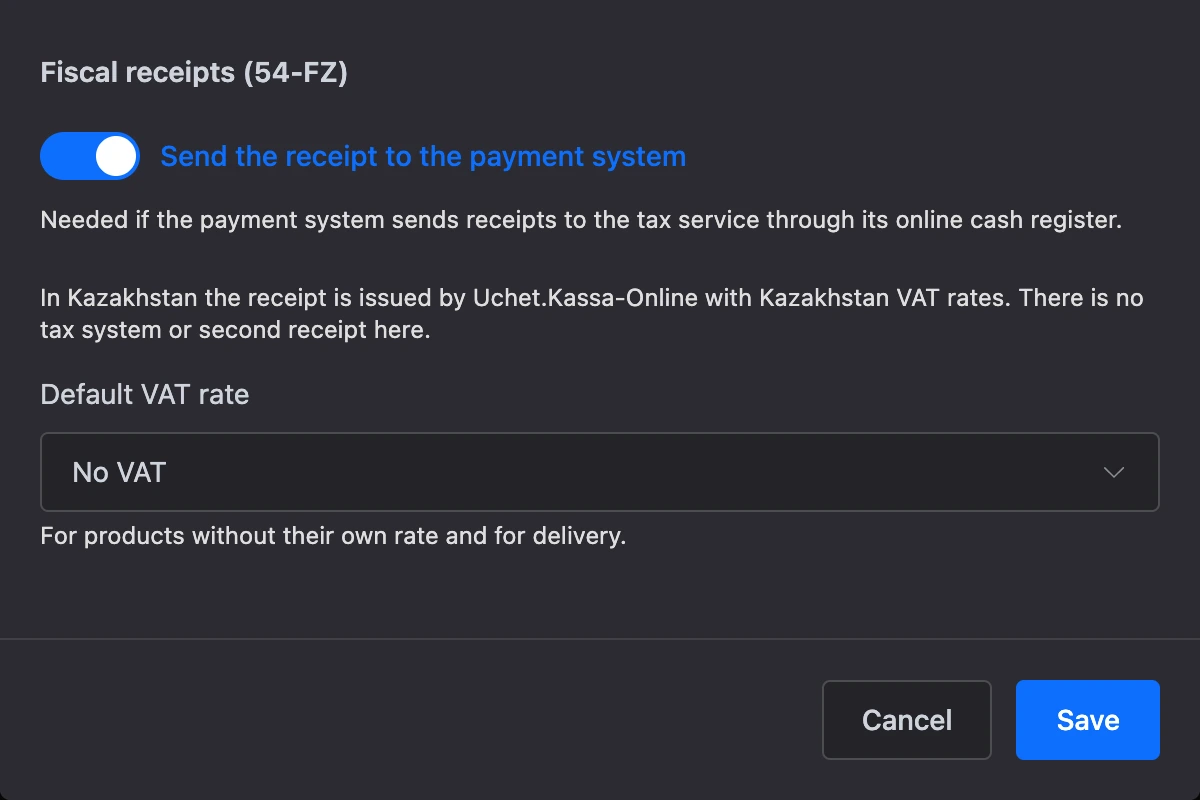
If "Kazakhstan" is chosen as the country in the connection, the receipt block looks different: the receipt is issued by Uchet.Kassa-Online with Kazakhstan VAT rates. There is no tax system, FFD version or second receipt here, and the rates to choose from are "No VAT", 0%, 5%, 12% and 16%.
Receipts in a chatbot
In a bot, the receipt data is collected from two places: the tax system and VAT rate come from the integration, and the payment subject and payment method flags come from the payment block itself.
- YooKassa. A receipt is always sent. In the integration — "Tax system" and "VAT rate", in the block — "Subject" and "Mode".
- Robokassa. A receipt is sent if the "Send receipts" switch is on in the integration. "Tax system" and "VAT rate" are there too, and the block has "Payment mode" and "Payment subject".
- Cloudpayments. A receipt is sent if the "Send receipt" switch on the integration's "Receipt" tab is on. "Tax system" and "VAT rate" are there too, and the block has "Payment mode" and "Payment subject".
- T-Bank. A receipt is sent if the "Send receipt" switch is on in the integration. "Tax system", "VAT rate" and "FFD version" are there too. The block has "Payment mode", "Payment subject", "Measure of quantity of the subject of calculation" and product marking.
- Prodamus. The block sets "Payment mode" and "Payment subject", and Prodamus creates the receipt.
To send a receipt, the payment system needs the buyer's phone or email. If the contact has neither, the bot first asks the person to enter a phone number.
Bot payments have no second receipt: if the law requires one from you, issue it in the payment system's dashboard.