

Shop settings
Open the shop and choose "Settings" in the menu. On the right there are four sections: "General", "Checkout", "Delivery" and "Payments". The settings can be changed by the project owner and by a team member with the "Configure shops" permission; others see them without being able to edit, and the "Payments" section is not shown to them.
General
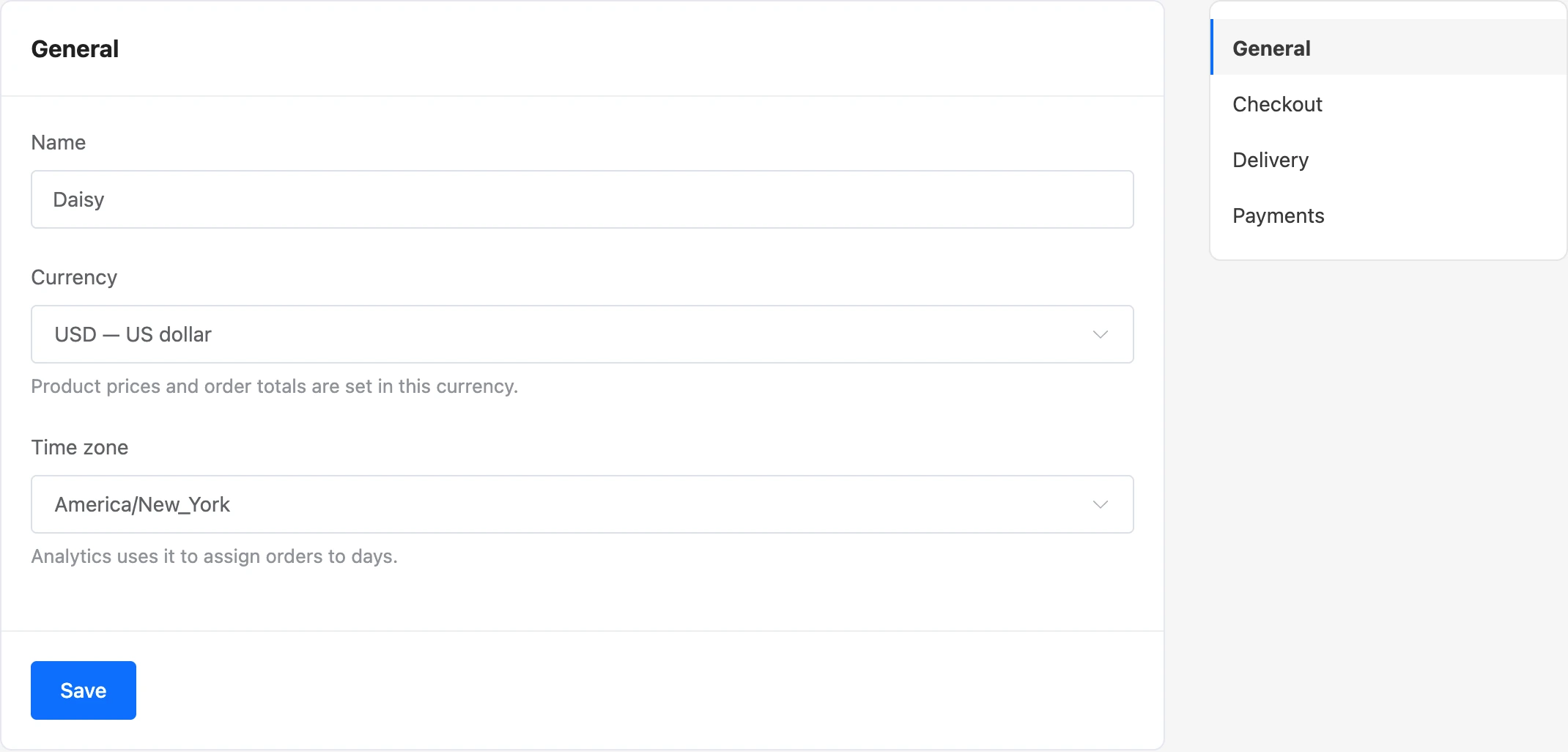
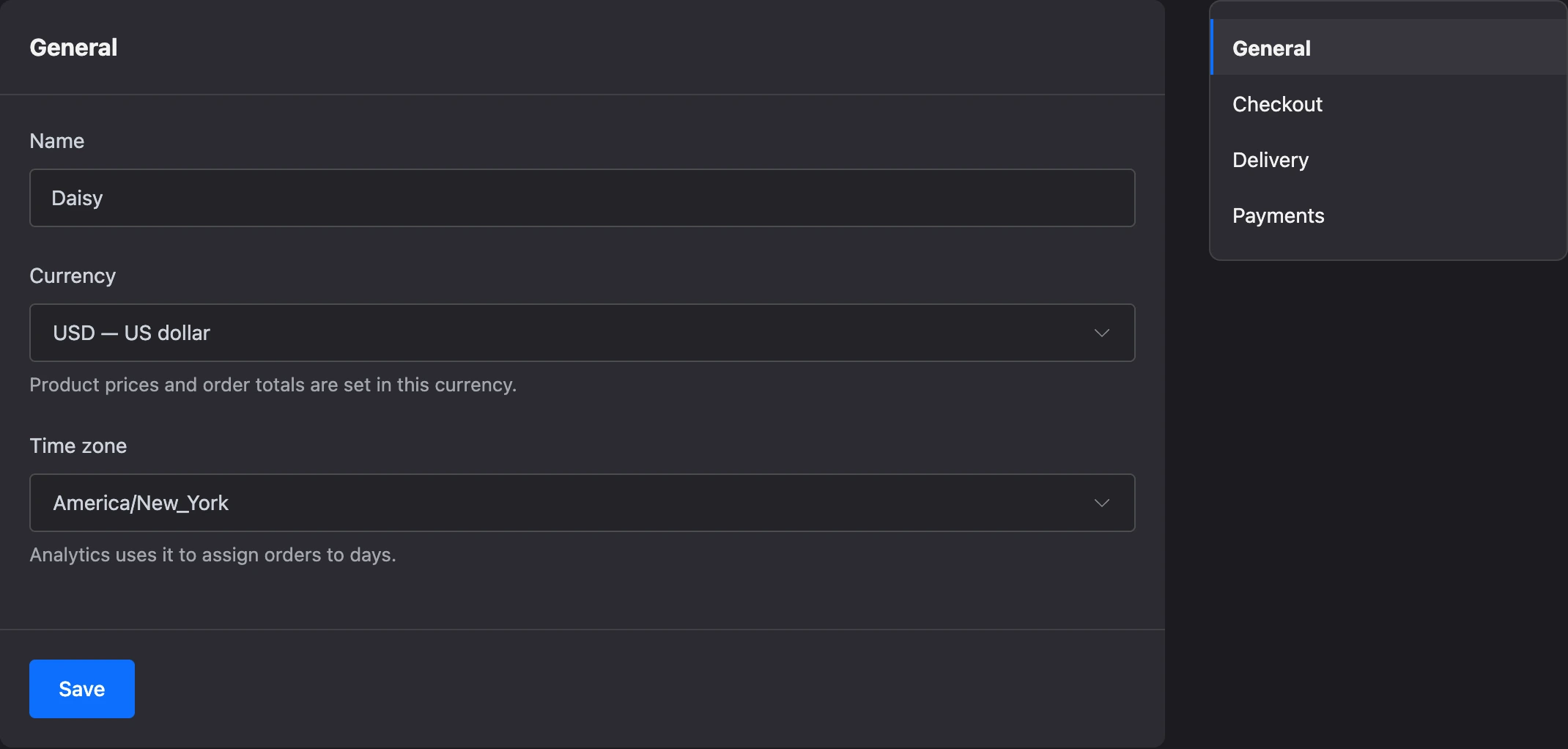
| Field | What it sets |
|---|---|
| "Name" | The shop's name — up to 255 characters |
| "Currency" | The currency in which product prices and order totals are set |
| "Time zone" | The time zone analytics uses to assign orders to days. Moscow time by default |
There are eight currencies: Russian ruble, US dollar, euro, Belarusian ruble, Kazakhstani tenge, Ukrainian hryvnia, Uzbekistani som, Armenian dram.
Important
The currency can be changed only as long as the shop has no orders. After the first order, saving returns the error "The currency cannot be changed: the shop already has orders." Prices are not converted when the currency changes: 1,990 rubles become 1,990 in the new currency.
Checkout
Here you set what the customer must provide when ordering.
The switches in the "What to ask the customer" block:
| Switch | What it does | Default |
|---|---|---|
| "Name (always required)" | The name is always required and cannot be turned off | On |
| "Phone is required" | The order is not placed without a phone number | On |
| "Email is required" | The order is not placed without an email | Off |
| "Allow a comment" | The customer can add a comment to the order | On |
"Minimum order amount" is the product total without delivery below which the order is not placed. 0 means no limit. The customer sees the message "The minimum order amount is …".
These rules apply to customers — in the bot and in the mini app. An order that a team member places manually is not checked against them.
Delivery
The customer chooses a delivery method at checkout. If there are no methods, orders are placed without delivery. If there is at least one enabled method, choosing one is required.
To add a method, click "Add method" and fill in the window:
| Field | What it sets |
|---|---|
| "Name" | The method's name — for example, "City courier" or "Pickup" |
| "Description for customers" | An explanation: delivery times, delivery area, the pickup point address. Up to 1000 characters |
| "Price" | The delivery price. 0 means free |
| "Free from amount" | The product total from which delivery is free. Empty — the rule does not apply |
| "Ask for an address" | The customer must enter an address. Turn it off for pickup |
| "Show to customers" | The customer does not see a disabled method |


In the list, under a method's name, you see its price, the free delivery threshold and the "address required" mark. A disabled method has the "off" mark. The order in which the customer sees the methods is changed by dragging.
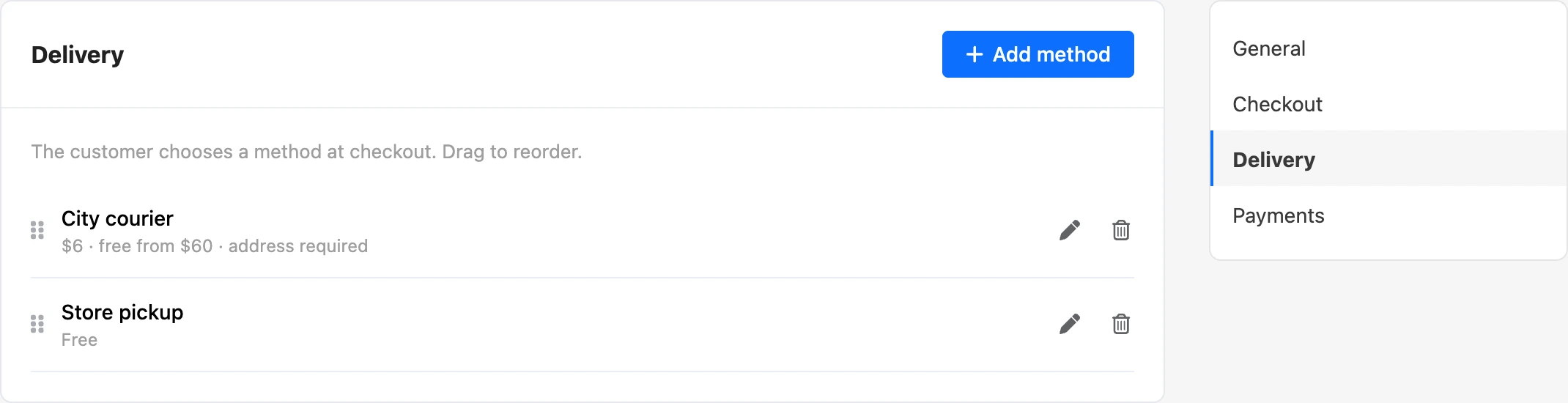
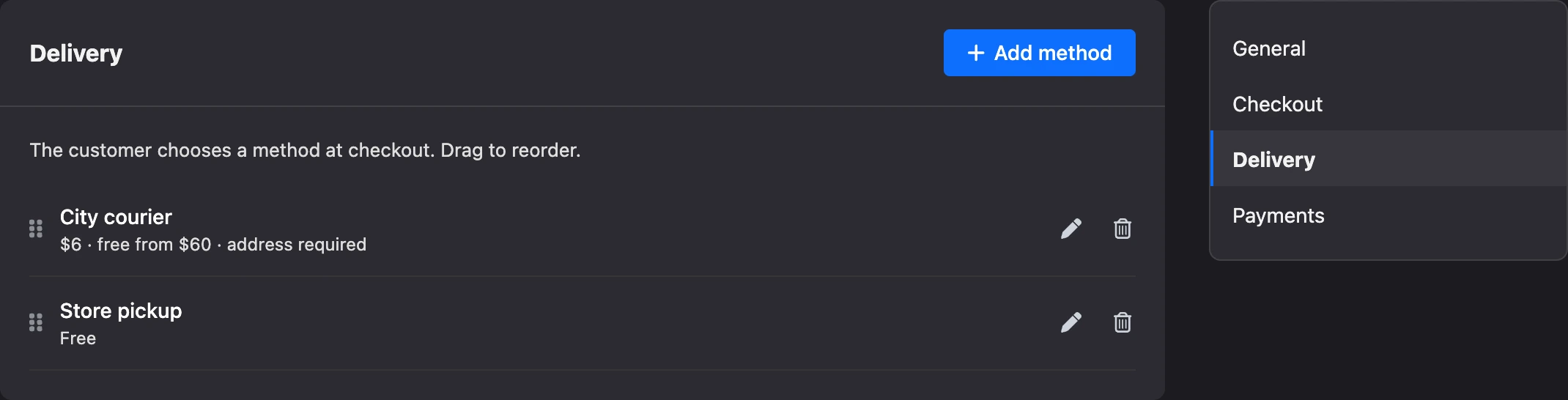
A deleted method stays in orders that have already been placed. A shop can have no more than 20 delivery methods.
Tip
Pickup is a delivery method with a zero price and the "Ask for an address" switch turned off. Write the pickup point address in the description.
The shop does not calculate the price by address and does not connect delivery services: a method's price is fixed.
Payments
| Setting | What it does |
|---|---|
| "Online payment" | The project's payment system through which the customer pays by card or via SBP. Empty — "No online payment" |
| "Hours to wait for payment" | The time within which the customer must pay for the order online: from 1 to 168 hours, 24 by default. The field appears when a payment system is chosen |
| "Payment on delivery" → "Allow" | The customer can pay in cash or by card to the courier or at the pickup point. On by default |
If both methods are available, the customer chooses between them at checkout. How to connect a payment system and what happens to unpaid orders is covered on the Order payment page.
Order notifications
The shop has no separate notification settings. The platform reports every new order from a customer in the dashboard notifications: "New order #… in the shop "…" for …". The notification goes to the project owner and to team members with order permissions. No notifications are sent about orders placed manually or about test orders.