

Building a shop in the AI chat
A shop can be built by describing it in words: "a flower shop with rose and tulip bouquets, courier delivery", "add T-shirts in sizes S, M, L in white and black", "load the products from this table". The AI creates the shop, adds products and categories, sets up delivery and checkout and tells you what is still missing to accept orders. You can fix an existing shop the same way: "set the price of the 15-rose bouquet to 3490", "hide all products in the "Winter" category".
You do not need a Pro subscription for this — just as for the shop itself. You pay for the model's tokens — they are charged to "AI Credits". How they work is described on the Prices of additional services page.
How building turns on
Open the AI chat — with the "AI chat" button on the top bar of the account — and describe what you need. There is nothing to switch on: the AI connects the shop building tools by itself, and a "Shop builder" chip appears above the message field. If a bot or a mini app is being built in the same chat too, the chip names all of them — for example, "Building: mini app and shop".
You can also start from the shop: the "AI help" item in the shop's side menu opens the AI chat about it. Building is on from the first message, and the shop panel is open on the right at once — no need to name the shop in the chat.
A new shop can also be started from the creation form: above it is the "Build a shop with AI" block. Click "Build", describe the task or pick an example and click "Build with AI" — the AI chat opens, and the description is sent to it as the first message.
In the chip's menu you choose the mode — "Ask first" or "Automatic" — and turn building off. When there are several builders, they share one mode, but each can be turned off separately. The modes are the same as for building a bot: see the Building a bot in the AI chat page.
Building a new shop
- Describe the shop: what you sell, which categories there are, how you deliver. If you have your own list of products with prices, paste it into the message or attach a table.
- The AI offers to create a shop in the current project — the "Create a shop" card.
- Then it adds the products — "Write products" cards, up to 25 products at a time — and sets up delivery and checkout — the "Set up delivery and checkout" card.
- In the "Ask first" mode, click "Apply", "Apply and don’t ask again" or "Reject" — just as when building a bot.
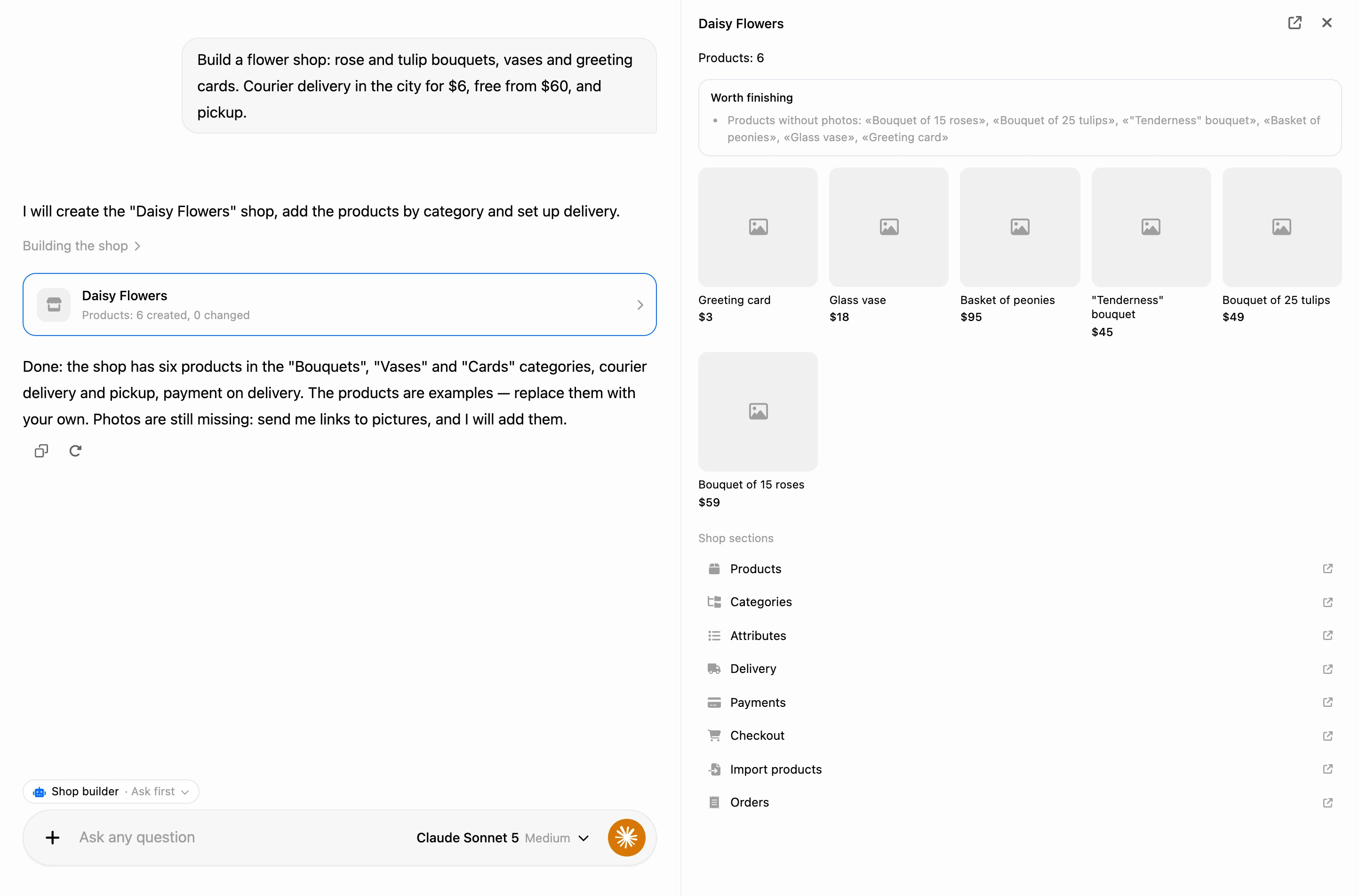
After every change, a shop card stays in the conversation: the name and what was done — for example, "Products: 12 created, 0 changed". The "not ready yet" mark means the shop cannot accept orders yet.
A click on the card opens the shop panel on the right:
- how many products the shop has and how many of them are hidden;
- the "The shop cannot take orders yet" block — what prevents placing an order;
- the "Worth finishing" block — what works but makes things worse for the customer;
- the first products with photos and prices — a click opens the product in a new tab;
- links to the shop's sections: "Products", "Categories", "Attributes", "Delivery", "Payments", "Checkout", "Import products", "Orders". They open in a new tab.
The button in the panel's header opens the "Products" section of this shop.
Fixing an existing shop
Name the shop in the chat — the AI finds it in the project by its name — or open the shop and click "AI help" in its menu. Then describe what to change.
The AI changes only what you asked for: if it is about the price, the product's description and photos stay as they were. It recognizes a product by its SKU or exact name, so writing the same product again does not create a duplicate.
What the AI can do
- Create shops in the current project and find existing ones by name.
- Add and edit products: the name, description, price and old (crossed-out) price, SKU, stock, the "product" or "service" type, visibility to customers.
- Sort products into categories. Categories are given as a path — for example, "Bouquets / Roses" — missing ones are created automatically, up to three levels deep.
- Add options and variants — up to three options, for example size and color. If you do not list the variants, the AI creates every combination of values at the product's price. You can set the price and stock of individual variants. See the Products page for more on options.
- Fill in characteristics by name. A new characteristic is created automatically, and its type is chosen by the value: yes/no, a number or a choice from a list. Filters work by characteristics.
- Put photos by links you gave. The AI downloads the picture into the shop. If a photo could not be downloaded, the product is saved without it, and the AI says so in its answer.
- Make up a sample assortment if you do not have your own products yet: names, descriptions, prices. Such products are visible to customers at once — replace them with your own. The AI does not make up photos.
- Hide products and show them again — by a list or a whole category: the "Hide products" and "Show products" cards.
- Set up checkout: whether the phone and email are required, whether a comment can be left, the minimum order amount, payment on delivery. See the Shop settings page for the fields.
- Set up delivery methods: the name, price, free delivery from an amount, whether an address is needed. The AI can turn a delivery method off but not delete it.
- Choose online payment from the payment accounts already connected in the project. You connect a payment system yourself — in the project settings; the AI does not ask for keys. See the Order payment page.
- Load products from a table attached to the message: XLSX, ODS or CSV. The AI matches the columns by their headers — name, price, old price, SKU, stock, category, description, photo — and starts the import, as in the "Products" section: the "Import products from a table" card. The import runs in the background, and its progress is visible in the "Products" section. How import works is described on the Product import page.
- Check the shop. The AI tells you what prevents accepting orders: no products, all products hidden, no payment method, products with options have no available variants. And what is worth finishing: no delivery method, products without photos or priced 0, empty categories.
What the AI does not do:
- It does not delete shops, products, categories or delivery methods. It only hides products and turns delivery methods off. You can delete them in the "Shops" section.
- It does not rename or move categories.
- It does not change the shop's name or currency.
- It does not connect payment systems and does not ask for their keys.
- It does not put photos from chat files. The AI puts a picture only by a link to it on the web.
Note
New products are visible to customers right after saving. After that, a platform moderator may review them.
What you need
- No Pro subscription — neither for the shop nor for building it. Pro is needed by the sales channels — the bot and the mini app. See the Shop page.
- Permissions. The AI changes the shop within the same limits as you. An employee needs permissions from the "Shops" block of their role: to create a shop — "Create shops", for products, categories and import — "Products and categories", for delivery and checkout — "Configure shops".
- A suitable model — the same as for building a bot. If the selected model cannot handle building, a "Model … cannot build shops" card appears in the conversation with a button to switch to a suitable one. See the Building a bot in the AI chat page.
If something does not work
- The AI describes the shop in text but creates nothing. Building did not turn on. Ask directly: "build a shop…". If the conversation shows a "Model … cannot build shops" card, click the button on it.
- The AI said what it would do, but nothing happens. In the "Ask first" mode the change is waiting for your decision on the card — click "Apply".
- A product has no photo. The link did not lead to a picture, or the picture is not available without signing in. The AI says so in its answer — give another link.
- A customer cannot place an order. Open the shop panel by clicking the card and look at the "The shop cannot take orders yet" block — it says what is missing.